

Let’s be honest—Canva used to feel like a lifesaver. You could open it up, drag a few things around, and boom… you had a decent-looking design in minutes. That’s why so many of us fell in love with it in the first place.
But lately? That excitement has faded for a lot of creators.
More and more people are opening Canva, scrolling through templates, and thinking, “Why does everything look the same?” The designs start to feel repetitive, customization feels limited, and the best features seem to sit behind another paywall every few months. What used to feel simple now feels… frustrating.
And if you’ve ever spent way too long tweaking a design—only to end up with something that still doesn’t quite look how you imagined—it’s not because you’re doing anything wrong. It’s often the tool.
That’s why so many creators, bloggers, small business owners, and content marketers are quietly looking elsewhere. Exploring other design websites can instantly give you fresher templates, better tools for your specific needs, and—believe it or not—save you time. Sometimes the fastest way to create better designs is simply switching platforms.
What Makes a Website Better Than Canva?
“Better” doesn’t mean more complicated—and it definitely doesn’t mean only for professional designers. A website can be better than Canva simply because it fits your workflow and goals more naturally.
For many people, it comes down to control and flexibility. Some platforms let you move things more freely, customize fonts and layouts more deeply, or create designs that don’t scream “template” the moment someone sees them.
Then there’s the issue of quality. Some Canva alternatives focus on fewer, higher-quality templates and assets instead of overwhelming you with thousands of look-alike options. The result? Cleaner, more polished designs that feel intentional.
Another big factor is purpose. Some tools are amazing for social media graphics, others shine with presentations, infographics, branding kits, AI-powered visuals, or even print materials. Canva tries to do everything—but sometimes a tool that does one thing really well is the better choice.
And finally, there’s the learning curve. A better platform might be:
- Easier and faster if you’re a beginner who wants less clutter
- Or more powerful if you’re ready for professional-level results
Either way, the “best” Canva alternative is the one that makes you feel confident instead of stuck—and helps your designs look like you, not everyone else.
Best Canva Alternatives
With so many options, it’s easy to wonder, “Okay… but which one should I actually use?” Here’s a simple breakdown of each alternative — no tech jargon required. You don’t have to choose just one. Many creators use one main tool and one backup tool depending on what they’re creating that day.
1. Adobe Express
Best for: Professional-looking designs with minimal effort
If you’ve ever opened Canva, made a design, and thought, “This is fine… but it doesn’t feel polished,” Adobe Express might be exactly what you’ve been missing.
The first thing you’ll notice is how clean and modern everything looks. The templates don’t feel trendy-for-the-moment or overdecorated. Instead, they have that calm, professional vibe that makes your design instantly feel more “put together” — even if you only spent a few minutes on it.
One big advantage is that Adobe Express comes with built-in Adobe fonts, photos, and effects, so everything already works well together. You don’t have to guess which font pairs nicely with which layout. The spacing, sizing, and balance feel intentional right from the start.
It’s especially great for social media posts, flyers, simple ads, and quick brand graphics. You can jump in, make a few small tweaks, and walk away with something that looks like it came from a professional designer.
Where Adobe Express really outperforms Canva is polish and consistency. Your designs don’t scream “template,” and if you’re creating content regularly, everything starts to look cohesive instead of random. It’s perfect if you want your visuals to feel elevated — without making design your full-time job.
2. Visme
Best for: Infographics, data visuals, and presentations
If Canva feels great for pretty graphics but falls apart the moment you try to explain something, Visme is where things start to make sense.
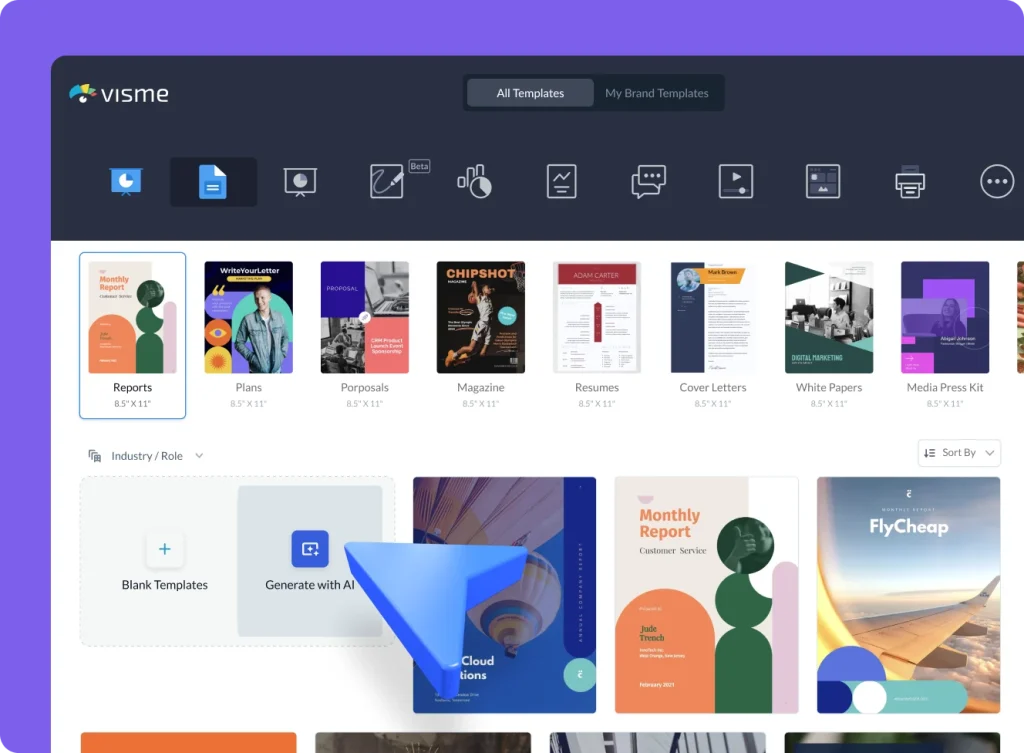
Visme really shines when you’re working with information — things like infographics, charts, timelines, step-by-step visuals, and presentations. Instead of forcing data into decorative boxes, Visme is built to help you tell a story visually.
It offers advanced charts, diagrams, icons, and interactive elements that make complicated ideas feel clearer, not more overwhelming. This makes it especially popular with educators, coaches, bloggers, and small business owners who want their content to be both helpful and attractive.
Another standout feature is its strong branding tools. You can easily keep your colors, fonts, and styles consistent across every graphic, which is a lifesaver if you create content often and want everything to feel on-brand.
Where Canva falls short is with data-driven designs. Canva can make things look cute, but Visme helps things make sense. If your goal is to explain, teach, or persuade — not just decorate — Visme gives you far more control and clarity.
3. VistaCreate
Best for: Eye-catching social media graphics and animations
If your main goal is creating scroll-stopping social media content fast, VistaCreate is a hidden gem. It feels a lot like Canva at first — but in a good way — without all the extra clutter that can slow you down.
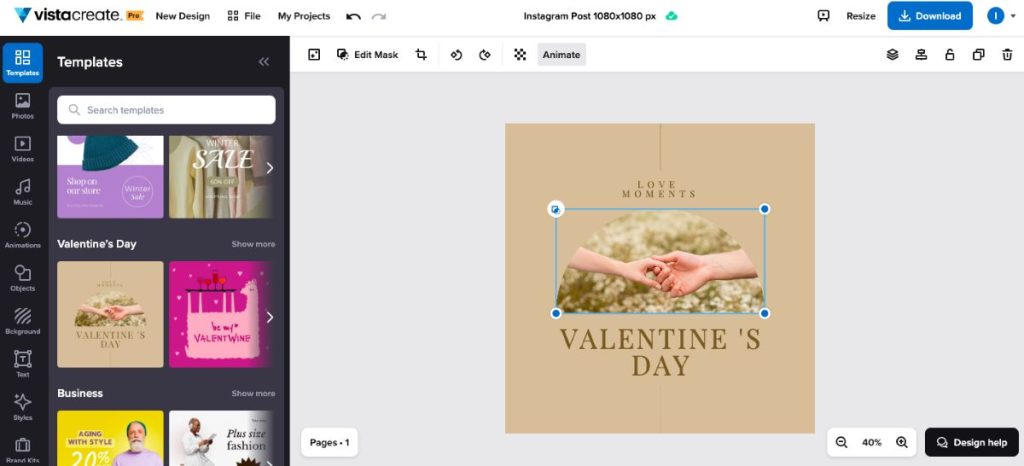
One of the biggest wins is its built-in animated templates and effects. You don’t have to figure out animations from scratch or layer a bunch of elements together. You just choose a template, swap out the text or images, and suddenly your post feels alive. This is especially helpful for Instagram, Facebook, and Pinterest where movement grabs attention.
The interface is simpler and calmer than Canva’s. Fewer buttons. Fewer distractions. No endless scrolling through templates that all look the same. Everything feels streamlined, which makes it much easier to stay focused and finish a design quickly.
Where VistaCreate really shines is speed. If you’re batching content, posting daily, or just don’t want to overthink design decisions, this tool gets you in and out with something that looks polished and modern. For fast social content, many people find it easier — and less overwhelming — than Canva.
4. Figma
Best for: Teams, collaboration, and UI-level control
Figma is a completely different experience from Canva — and that’s exactly why so many creators love it once they try it.
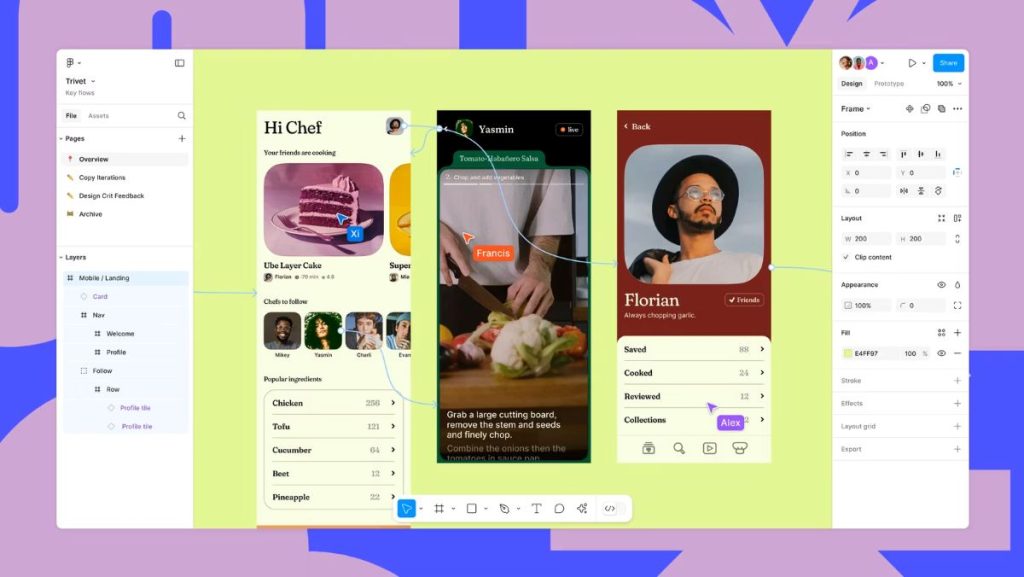
If you’ve ever felt boxed in by Canva’s limitations, Figma feels like someone finally handed you the keys. You can move things exactly where you want them, control spacing down to the tiniest detail, and design without fighting the tool.
One of Figma’s standout features is real-time collaboration. Multiple people can work on the same design at the same time, seeing each other’s cursors and changes live. This makes it a favorite for teams, partners, and anyone working with clients or collaborators.
Figma is ideal for creators who want more freedom and precision — especially for things like website layouts, digital products, UI mockups, or brand systems. It’s not trying to make choices for you. Instead, it gives you full creative control.
Why is it considered a step up from Canva? Because it’s built for serious creatives. There’s a bit more of a learning curve, yes — but in exchange, you get flexibility, scalability, and designs that feel truly custom instead of template-based.
If Canva feels limiting and you’re ready to grow into more advanced design work, Figma is where many creators level up.
5. Snappa
Best for: Quick, no-stress graphics
If Canva ever makes you feel overwhelmed before you even start designing, Snappa feels like a breath of fresh air.
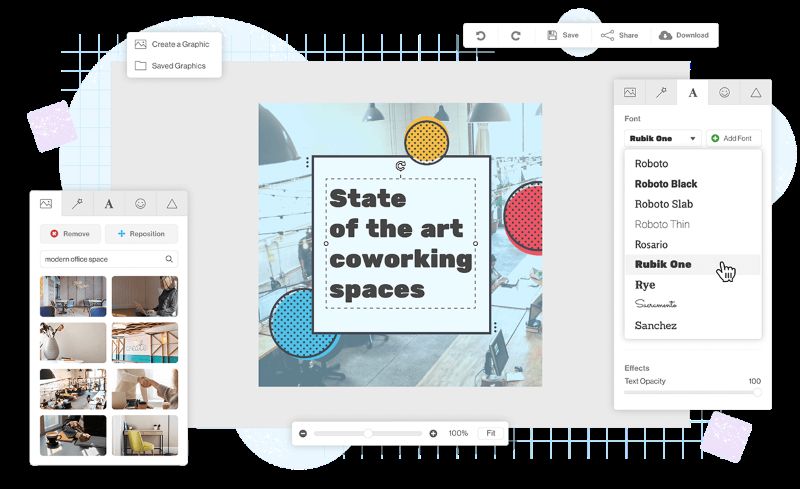
Snappa is extremely beginner-friendly. There’s no clutter, no confusing menus, and no “Where do I click next?” moments. You open it, pick what you’re creating, and you’re already halfway done. It’s the kind of tool that makes you think, “Oh… this is actually easy.”
One of the best things about Snappa is that everything is pre-sized for you — blog graphics, social media posts, ads, headers, thumbnails. You don’t have to worry about dimensions or resizing the same design five different times for different platforms. It’s all ready to go.
Snappa is perfect if you:
- Just want a clean, professional graphic
- Don’t care about fancy effects or animations
- Want to finish your design fast and move on
Why is Snappa better than Canva for simplicity? Because it doesn’t try to do everything. There are fewer options, fewer distractions, and fewer chances to second-guess yourself. You make decisions faster, designs come together quicker, and you don’t feel mentally drained when you’re done.
If you’ve ever thought, “I just need this to look good — not perfect,” Snappa is your tool.
6. PicMonkey
Best for: Photo-heavy designs and image editing
PicMonkey is what Canva wishes it could be when it comes to photos.
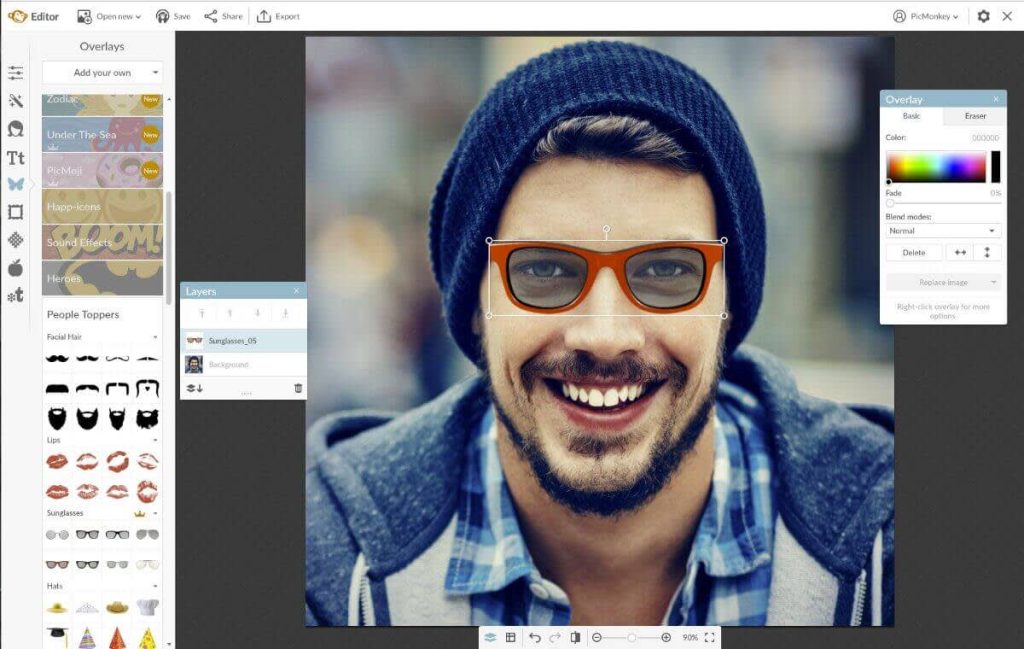
If your designs rely heavily on images — lifestyle photos, portraits, product shots, flat lays — PicMonkey gives you real photo-editing power without feeling intimidating. Brightening, sharpening, smoothing, retouching, adjusting colors… it all feels intuitive instead of complicated.
This is especially helpful for Pinterest pins and lifestyle graphics, where the image itself does most of the talking. PicMonkey lets you make photos look vibrant, polished, and eye-catching before you even add text.
Another big plus is how well PicMonkey handles text on images. You can fine-tune placement, spacing, and overlays so your words don’t fight with the photo — they complement it.
Why does PicMonkey beat Canva for image-first creators? Because Canva is design-first, photo-second. PicMonkey is the opposite. It’s built for people who start with a photo and want to make it look amazing, not just decorate it with shapes and stickers.
If you’ve ever uploaded a photo to Canva and thought, “Why does this look dull?” — PicMonkey will feel like a game changer.
Read Also: 5 Amazing CapCut Alternatives That Don’t Steal Your Content
7. DesignCap
Best for: Non-designers who want clean, professional layouts
DesignCap is one of those tools that quietly does its job really well — without asking you to make a hundred design decisions along the way.
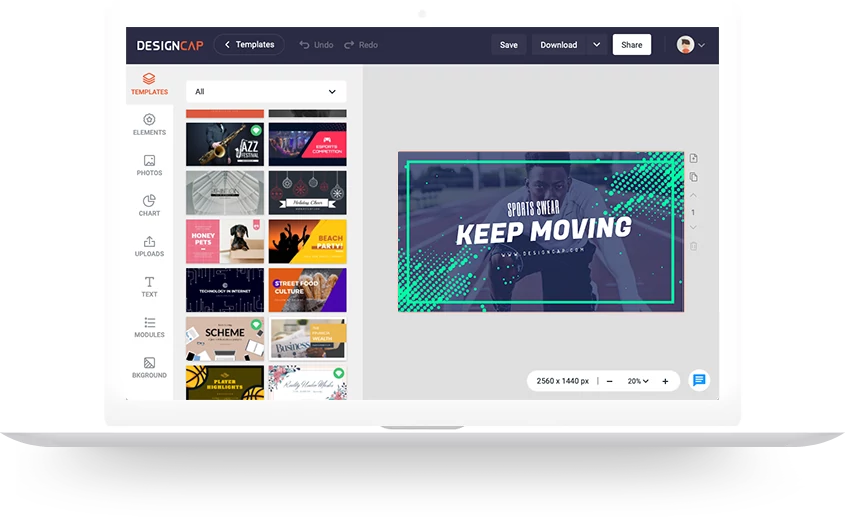
If Canva ever makes you feel overwhelmed with too many fonts, too many colors, and too many “cute” elements fighting for attention, DesignCap feels refreshingly calm. The templates are straightforward, clean, and uncluttered, which makes it much easier to focus on what you actually want to say.
It’s especially great for flyers, posters, simple marketing materials, announcements, and informational graphics. You won’t find a ton of flashy effects or trendy extras here — and that’s the point. Everything is designed to look clear, readable, and professional.
What makes DesignCap less overwhelming than Canva is that it doesn’t try to be everything at once. There are fewer choices, but they’re better organized. That means less second-guessing and more confidence that what you’re creating already looks “right.”
If you’ve ever thought, “I just want something clean that doesn’t look homemade,” DesignCap is a great option.
You Don’t Have to Stick With Canva
Canva is familiar — and there’s nothing wrong with that. But familiar doesn’t always mean best.
If designing has started to feel frustrating, repetitive, or more complicated than it should be, switching tools can be incredibly refreshing. Sometimes all it takes is a new interface or a different set of templates to spark creativity again.
The good news? You don’t have to quit Canva forever or learn something complicated overnight. Try one or two alternatives that match your needs. Test them out. See how they feel. Pay attention to whether designing feels easier, faster, or more enjoyable.
Design tools are supposed to help you — not drain your energy. And the right one will make you think, “Oh… this is so much better.”
Read Also: