
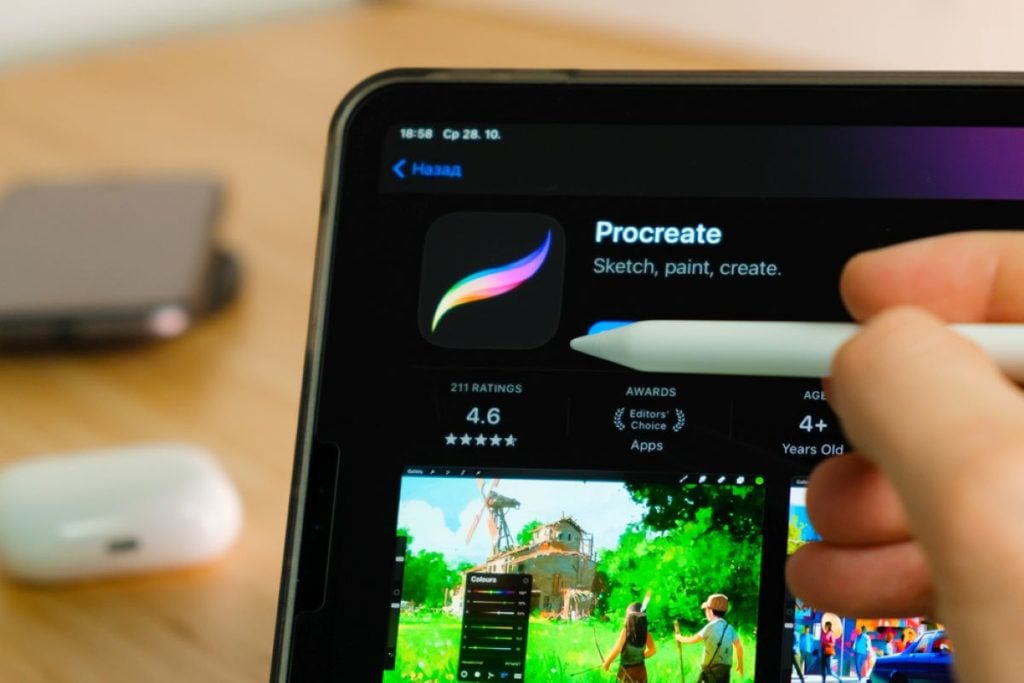

If you’ve ever dipped your toes into digital art on an iPad, there’s a very good chance you’ve heard of — or already used — Procreate. It’s fast, powerful, and honestly a joy to draw with. For many artists, it’s the first app that makes digital art feel fun instead of intimidating.
But here’s the thing: Procreate isn’t perfect for everyone.
Some creators eventually realize they want something that works on Windows, not just iPad. Others start craving different brushes, more advanced vector tools, or a workflow that feels better for comics, graphic design, or professional projects. And for beginners? Procreate can sometimes feel like being handed a cockpit full of buttons with no instruction manual.
That’s why more and more artists — from casual sketchers to serious illustrators — start looking around for alternatives.
This list is for you if:
- You love drawing but don’t want to be locked into one device
- You use Windows and feel left out of the Procreate conversation
- You’re a beginner who wants something less overwhelming
- You’re a designer, hobbyist, or illustrator looking for a better fit
Good news: you have excellent options. Let’s start with one of the most popular Procreate alternatives out there.
1. Adobe Fresco
Best for artists who love a natural drawing feel
Adobe Fresco is often the first name that comes up when artists start searching for a Procreate alternative — and for good reason. It’s built specifically for drawing and painting, and it focuses heavily on making digital art feel as close to traditional art as possible.
What really sets Adobe Fresco apart is its Live Brushes. These brushes mimic real watercolor and oil paint behavior, meaning colors blend, bleed, and move in ways that feel surprisingly organic. If you’ve ever wished your digital art felt more like real paper and paint, Fresco delivers that experience beautifully.
Another big advantage is flexibility. Fresco lets you work with both raster and vector brushes in the same project. That’s a huge win if you like sketching freely but also want clean, scalable lines for logos, illustrations, or design work later on.
And yes — it works on both iOS and Windows, which instantly makes it appealing to artists who bounce between devices or don’t use an iPad exclusively.
Who Adobe Fresco is best for
- Artists who love sketching, painting, and hand-drawn styles
- Creators who want a realistic brush experience
- People already using other Adobe products
- iPad and Windows users who want one app across devices
Pros
- Extremely natural, realistic brush behavior
- Clean, modern interface that doesn’t feel cluttered
- Works on both iOS and Windows
- Seamless integration with other Adobe tools
Cons
- Some advanced features require an Adobe subscription
- Less customizable brush ecosystem than Procreate
- Not ideal for comic panel workflows
How it compares to Procreate
If Procreate feels like a powerful digital sketchbook, Adobe Fresco feels like a digital art studio. Procreate still wins for speed, brush customization, and community-created brushes — but Fresco shines when it comes to realism, cross-platform use, and polished workflows.
If you love the feeling of drawing more than tweaking endless settings, Adobe Fresco may actually feel more intuitive than Procreate.
2. Clip Studio Paint
Best for comic, manga, and detailed illustration work
Clip Studio Paint is one of those tools that artists quietly swear by — especially if they’re into comics, manga, or highly detailed illustrations. It might not look as trendy as Procreate at first glance, but don’t let that fool you. This app is serious about drawing.
If you love clean line art, expressive inking, and structured pages, Clip Studio Paint feels like it was built just for you. It’s packed with tools that comic artists would normally have to piece together across multiple apps.
What makes Clip Studio Paint stand out
The real magic here is in the inking and panel tools. You get pressure-sensitive pens that feel incredibly responsive, vector-based line tools that let you adjust strokes after drawing them, and built-in features for creating comic panels, speech bubbles, and perspective grids.
In short: it removes a lot of the friction that comes with creating polished, story-driven art.
Device support
One huge plus is flexibility. Clip Studio Paint works on:
- iOS (iPad and iPhone)
- Windows
- Drawing tablets and pen displays
That makes it especially appealing if you don’t live entirely in the Apple ecosystem.
Learning curve vs Procreate
Let’s be honest — Clip Studio Paint can feel intimidating at first. The interface is denser than Procreate, and there are a lot of menus. But that’s also because it’s doing more.
If Procreate feels like a sketchbook, Clip Studio Paint feels like a full drafting table. There’s a short adjustment period, but once things click, many artists never look back.
Pros
- Outstanding tools for line art, inking, and comics
- Built-in panel, ruler, and perspective systems
- Works on both iOS and Windows
- Great for detailed, professional-level illustration
Cons
- Interface can feel overwhelming at first
- Not as “pick up and doodle” friendly as Procreate
- Subscription pricing on some platforms
Ideal user
Clip Studio Paint is perfect for:
- Comic and manga artists
- Illustrators who care deeply about clean lines
- Artists who want structure and control
- Windows users who feel left out by Procreate
If storytelling through art is your thing, this app feels like a natural fit.
3. Sketchbook
Best free and beginner-friendly alternative
Sketchbook is the opposite of overwhelming — and that’s exactly why people love it.
If you’ve ever opened a drawing app and thought, “Why are there so many buttons?” Sketchbook feels like a breath of fresh air. It’s clean, simple, and incredibly approachable, especially if you’re new to digital art or just want to sketch without pressure.
Why Sketchbook is so appealing
The biggest draw? It stays out of your way.
Sketchbook focuses on the basics: drawing, sketching, and getting ideas out of your head quickly. There’s no complicated setup, no steep learning curve, and no feeling like you need a tutorial just to start.
You open it… and you draw. That’s it.
Interface and ease of use
The interface is minimal and intuitive. Tools are easy to find, gestures make sense, and nothing feels cluttered. This makes it ideal for beginners, casual artists, or anyone who just wants a digital space to doodle and relax.
Platform availability
Sketchbook works on:
- iOS
- Windows
So whether you’re sketching on an iPad or a Windows laptop with a pen, you’re covered.
Tools compared to Procreate
You won’t get Procreate’s massive brush library or deep customization options — but that’s kind of the point. Sketchbook gives you reliable pencils, pens, markers, layers, and blending tools without the complexity.
It’s less about polish and more about practice, exploration, and fun.
Pros
- Free and easy to get started
- Extremely beginner-friendly
- Clean, distraction-free interface
- Great performance on older devices
Cons
- Fewer advanced features
- Limited brush customization
- Not ideal for highly polished final artwork
Best use cases
Sketchbook is perfect for:
- Beginners learning digital drawing
- Casual sketching and daily practice
- Brainstorming ideas and concepts
- Artists who want a stress-free experience
If Procreate feels like too much and Clip Studio Paint feels too intense, Sketchbook is that comfortable middle ground where you can just enjoy drawing again.
4. Affinity Designer
Best for vector-based illustration and graphic design
Affinity Designer is a fantastic option if your work leans more toward clean, polished design rather than loose, painterly illustration. Think logos, icons, social media graphics, printable artwork, and illustrations that need to stay sharp at any size.
If Procreate feels like a sketchbook, Affinity Designer feels like a precision toolkit.
Overview of Affinity Designer
At its core, Affinity Designer is built for designers and illustrators who want control. It’s known for being powerful, professional-grade software without the intimidating price tag of some big-name design tools.
What makes it especially interesting is that it lets you switch seamlessly between vector and raster workflows inside the same app.
Raster vs vector workflow (in plain English)
Here’s the simple way to think about it:
- Raster = great for painting, shading, textures, and expressive drawing
- Vector = perfect for clean lines, shapes, logos, and artwork that needs to scale perfectly
Affinity Designer lets you work in both modes without switching apps. You can sketch freely, then refine your work into crisp, scalable designs — all in one place.
That’s something Procreate doesn’t really aim to do.
iPad and Windows support
This is where Affinity Designer really shines for many people.
It works beautifully on:
- iPad
- Windows
So if you’ve ever loved Procreate but felt frustrated by its iPad-only limitation, Affinity Designer immediately feels more flexible.
The one-time purchase appeal
This is a huge selling point.
Affinity Designer uses a one-time purchase model, not a subscription. You pay once and own the app. No monthly fees. No pressure. No surprise renewals.
For hobbyists, freelancers, or anyone tired of subscriptions, this alone can be reason enough to switch.
Pros
- Excellent for vector illustration and graphic design
- Works on both iPad and Windows
- Smooth combination of vector and raster tools
- One-time purchase (no subscription)
- Professional-quality output
Cons
- Less focused on painting and natural brushes
- Can feel technical for casual doodling
- Not as “instant fun” as Procreate for sketching
Who should choose this over Procreate
Affinity Designer is a great fit if you:
- Create logos, graphics, or printable designs
- Want artwork that scales cleanly
- Use Windows and iPad interchangeably
- Prefer a one-time purchase over subscriptions
If your art is more about precision than paint splatter, Affinity Designer is a very smart alternative.
Which Procreate Alternative Should You Choose?
Let’s be honest — there is no single “perfect” Procreate replacement, and anyone who tells you otherwise is oversimplifying it. The right alternative depends entirely on how you like to create and what device you actually use day to day.
If I had to crown a best overall alternative, I’d give that title to Adobe Fresco. It’s the most balanced option on this list. It feels natural to draw in, works on both iPad and Windows, and doesn’t overwhelm you with complexity right out of the gate. If you enjoy sketching, painting, and experimenting with brushes — and you want something that feels polished but not intimidating — Fresco is the safest, most satisfying switch from Procreate.
For Windows users, the answer is refreshingly clear: Procreate simply isn’t an option, so stop trying to make it one. If your work leans toward comics, storytelling, or detailed line art, Clip Studio Paint is the strongest choice you can make. It’s not flashy, but it’s incredibly capable, and once you get past the initial learning curve, it feels like it was built by people who actually understand how illustrators work. If your focus is design, logos, or clean, scalable artwork, Affinity Designer makes far more sense and gives you professional power without trapping you in subscriptions.
If you just want to draw — no pressure, no payment, no steep learning curve — Sketchbook is hands-down the best free option. It doesn’t try to impress you with features you don’t need. It just opens fast, stays out of your way, and lets you enjoy drawing again. For beginners or casual artists, that simplicity is a feature, not a limitation.
For professional illustrators, the answer depends on what “professional” means to you. If your work involves publishing-ready art, comics, manga, or heavy line control, Clip Studio Paint is the most production-ready tool here. If your work is client-facing design, branding, or illustration that needs to scale perfectly, Affinity Designer is the smarter investment. And if your professional work leans toward expressive, painterly art with a natural feel, Adobe Fresco can absolutely hold its own.
So here’s the real takeaway: don’t chase the app everyone else is using. Choose the one that fits how you think, draw, and work. Procreate is fantastic — but it’s not the only path to great digital art anymore. And honestly? For many creators, one of these alternatives ends up being a better fit than Procreate ever was.
Read Also: