
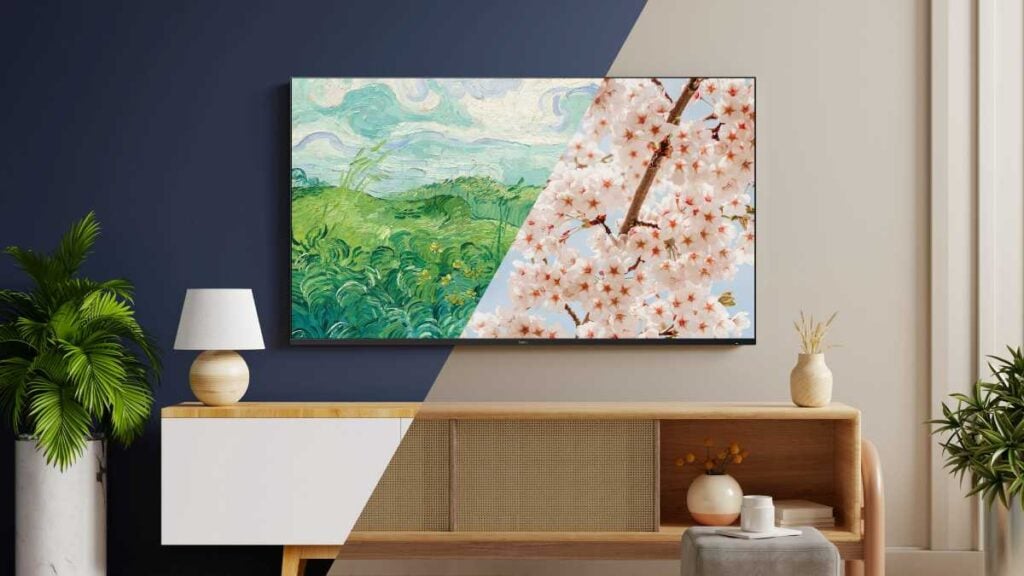

I didn’t plan on turning my TV into something beautiful.
In fact, I bought my Roku TV for one simple reason: it was affordable. It did the job. Nothing fancy.
But one day, I accidentally discovered something that completely changed how I look at it, and now, it feels like I have one of those stunning, high-end art TVs you see in designer homes.
And the best part?
It didn’t cost me a single extra dollar.
Turn on Roku Backdrops (this is where the magic starts)
This is the step that really makes your TV feel like art instead of… well, a TV.
First, grab your remote and head into your Roku settings. Go to Settings → Home Screen Menu → Backdrops, then open the Backdrops app. If you don’t see it there, don’t worry, just search for “Backdrops” in the Streaming Store and install it.
Here’s the important part: you have to enable Backdrops first, or nothing will show up on your screen. Once it’s on, that’s when your TV starts transforming.
Now you get to choose what your TV displays.
If you want that “gallery wall” feel, open the Backdrops app and pick a collection, something like a Claude Monet series works beautifully. Once you find one you love, click “Set as Backdrop”, then hit “Start Backdrops.” Just like that, your TV starts cycling through artwork.
Want to control how long each piece stays on screen? While the images are playing, press the star (*) button on your remote, scroll down to Image Duration, and choose whatever timing feels right.
If you’d rather keep it simple and display just one image, you can do that too. Just click on the image you like and hit “Start Backdrops.” Then press the star (*) button again, go into settings, and set Image Duration → Don’t Change so it stays on that one piece.
And that’s it, your TV is no longer just a screen. It’s now something people will actually stop and look at.
How I actually start Backdrops (it’s easier than you think)
Once everything is set up, this part becomes second nature, and honestly, it’s what makes the whole thing feel effortless.
The quickest way? Just tap the power button on your remote. A quick press will start Backdrops instantly (and if you hold it down, it turns the TV off). This only works if you’re using a Roku TV, but it’s by far the easiest method.
You can also start it right from inside the Backdrops app. If you’re in the mood to browse, go to Collections, pick one you love, and hit Start Backdrops. Same idea if you’ve found a single image you want to display, just click it and start Backdrops from there.
If you want this to feel completely automatic (which I highly recommend), you can set it to turn on by itself. Head to Home → Settings → System → Power → Auto Power Savings, and you can have your TV slip into art mode without you lifting a finger.
And if you’re anything like me and love shortcuts, you can even use your voice. Just press the mic button or say, “Hey Roku, start Backdrops.” You can also tell it to stop whenever you’re ready to watch something.
After a day or two, you won’t even think about it anymore—it just becomes part of how you use your TV.
Make it personal (this is where it really starts to feel like your home)
This is my favorite part, because this is where your TV stops looking like a generic art display and starts feeling personal.
Inside the Backdrops app, you can create your own little gallery called My Favorites. If you come across a collection you love, you can add the whole thing in one tap. Or, if you only like a few specific pieces, just add individual images instead. Later, you can find everything neatly in the My Favorites row inside the app.
But here’s where it gets really special…
You can upload your own photos.
From the Backdrops app, choose “Add your photos”, then select “Upload photos.” You’ll scan a QR code with your phone, follow the steps, and sign in with your Roku account. After that, your personal pictures—family moments, grandkids, vacations—can show up on your TV just like artwork.
If you already use Google Photos, it’s even easier. Just connect it through the Backdrops app, scan the QR code, and your albums will be ready to use.
Once everything’s connected, you can browse your albums right on your TV and pick exactly what you want to display. Some days it can be classic art, and other days it can be your favorite family memories.
And don’t skip the settings—this is where you fine-tune everything to feel just right. You can adjust brightness, decide how long each image stays on screen, or even set a daily stop time so your TV turns off the display automatically at night. (This won’t interfere with your sleep timer, by the way.)
After this step, your TV doesn’t just look beautiful—it actually tells your story.
Read Also: How to Make Your Roku TV Pleasantly Aesthetic in 4 Easy Steps
Don’t stop at Roku Backdrops, find better TV art on YouTube
If you want more options beyond the official Roku Backdrops, there’s a really simple trick that opens up way more variety.
A lot of people assume you’re limited to what Roku gives you—but you’re not.
You can actually use YouTube to find beautiful display art for your TV. And the best part? There are tons of options—way more styles, moods, and seasonal looks than what you’ll typically find built in.
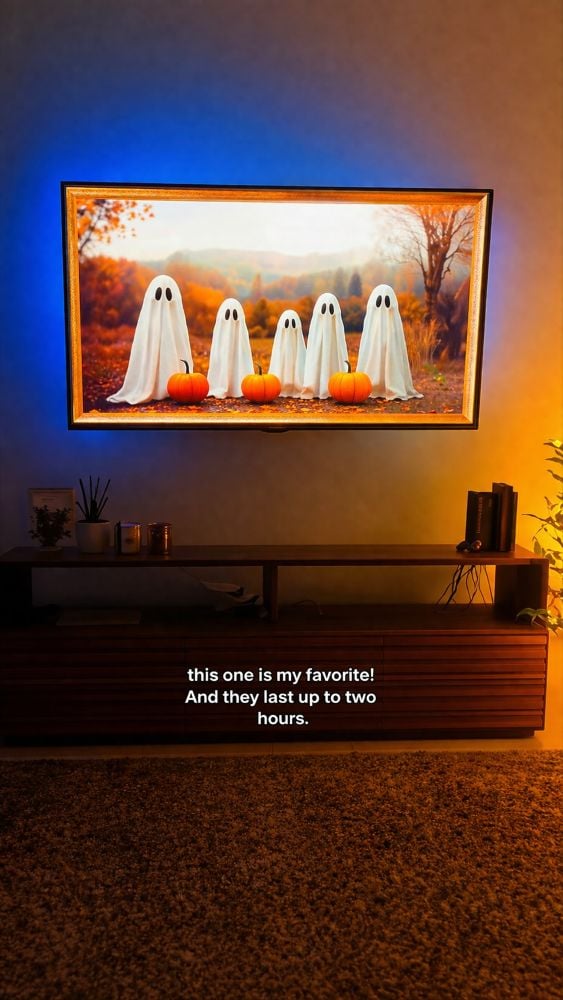
Once you open up YouTube, head straight to the search bar and type in something like “framed Halloween TV art”. And this is where it gets fun. You’ll instantly see tons of options—everything from cozy fall scenes to full-on spooky Halloween displays. Some look like vintage paintings, others feel more modern or animated. There’s genuinely something for every vibe.
If Halloween isn’t your thing, you can switch it up just by changing your search. Try “framed fall art” for warmer, cozier tones. Think pumpkins, autumn leaves, soft candlelight—basically the kind of visuals that make your living room feel instantly inviting.
And the best part? It’s completely free. You don’t even have to be logged into YouTube. I’ve used it as a guest plenty of times, and it works just fine.
What I love most is how easy it is to change things with the seasons. One day your TV is a spooky centerpiece for October, and the next it’s a cozy winter scene for Christmas. It turns your TV from something you just watch… into something that actually adds to your home.
It’s such a small change, but it completely transforms the feel of the room.
How to turn Backdrops off (when you just want a normal TV again)
As much as I love the “art mode” look, sometimes you just want your TV to act like… a TV.
If you’re trying to turn the TV off completely (instead of launching Backdrops), here’s the trick: press and hold the power button for about 3 seconds. A quick tap starts Backdrops, but holding it down actually shuts everything off.
If you decide you don’t want Backdrops running at all, you can disable it pretty easily.
Just open the Backdrops app, tap the little gear icon, and go into Backdrops Preferences. From there, you’ll see an option that says Backdrops (Enabled)—select it and switch it to Disabled.
That’s it. No more art mode popping up when you don’t want it.
Think of it like this: you’re not locked into anything. You can turn it on when you want that beautiful, gallery-style look… and turn it off just as easily when you don’t.
Read Also: How to Watch Local TV Channels on Roku (Even Without Cable)