

If you’re hoping to use your AirPods Pro with your Roku TV, the good news is that it might be possible. Some Roku TVs let you connect Bluetooth headphones or earbuds directly, which means you can watch your shows without blasting the volume through the room.
The small catch is that this depends on your Roku TV model. Not every Roku TV has the same Bluetooth options, so before you spend time trying to pair your AirPods, it’s worth checking whether your TV actually supports Bluetooth headphones.
Think of this as the quick “does my TV even allow this?” step. If your Roku TV has the right Bluetooth menu, you’re in good shape. If it doesn’t, your AirPods probably won’t connect directly through the TV settings.
1. Check Whether Your Roku TV Supports Bluetooth Audio
Start by grabbing your Roku remote and pressing the Home button. From the main screen, scroll over to Settings. This is where Roku keeps all the important device options, including anything related to remotes, speakers, and Bluetooth.
Next, go to Remotes & devices. Once you’re there, look carefully for an option that says Bluetooth headphones and speakers. That’s the menu you need if you want to connect AirPods Pro directly to your Roku TV.
If you see that option, great — your Roku TV should be able to pair with Bluetooth earbuds. If you don’t see it, don’t worry, you’re not doing anything wrong. It just means your Roku TV model probably doesn’t support direct Bluetooth headphone pairing. Some Roku TVs only show options for remotes or speakers, and those models may not let you connect AirPods this way.
2. Open the Bluetooth Headphones and Speakers Menu
Once you find Bluetooth headphones and speakers, go ahead and select it. This is the section where your Roku TV keeps track of Bluetooth audio devices, like earbuds, headphones, or speakers you’ve connected before.
You might see a list of devices already paired with the TV. That’s totally normal. It just means other headphones or earbuds have been connected in the past. Your AirPods Pro will be added to this same list once the pairing process is complete.
This menu is basically your Bluetooth audio control center. From here, you can connect a new device, switch between devices, or see which headphones are currently connected. So if you plan on using your AirPods often, this is the menu you’ll probably come back to whenever you want to reconnect them.
3. Choose “Add New Bluetooth Audio Device”
Once you’re inside the Bluetooth headphones and speakers menu, scroll down until you see Add new Bluetooth audio device. This is the option you want because you’re telling your Roku TV, “Hey, look for a new pair of earbuds nearby.”
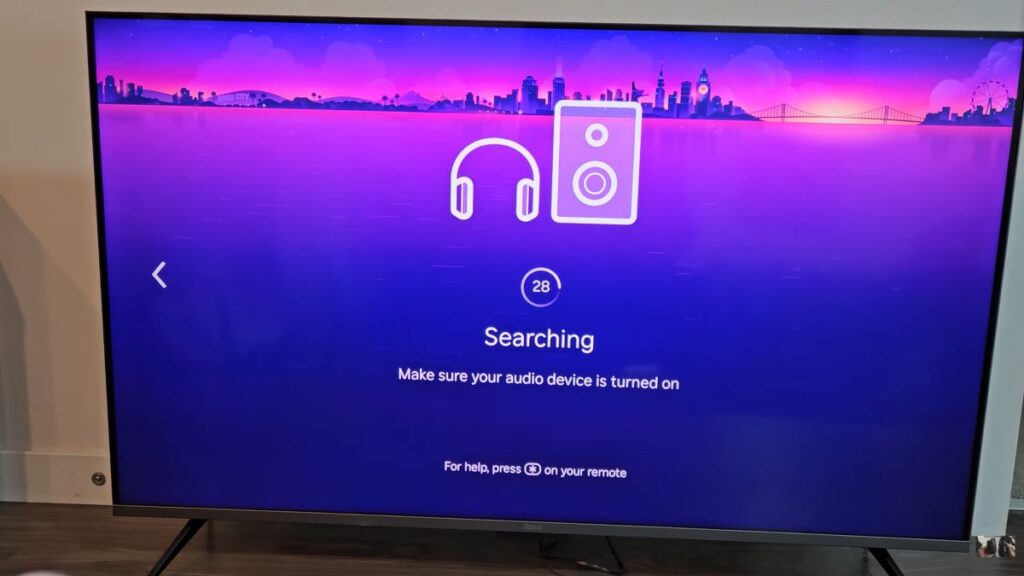
Go ahead and select it with your Roku remote. After that, your TV will start searching for Bluetooth devices that are ready to pair. This part is just like when your phone looks for a new speaker, headphones, or car Bluetooth connection.
The key thing is your AirPods need to be in pairing mode while Roku is searching. If they’re not, your Roku TV probably won’t find them. So once you start the search, move right into the next step and get your AirPods Pro ready.
4. Put AirPods Pro Into Pairing Mode
Now open your AirPods Pro case, but keep the earbuds inside for the moment. Unlike some older AirPods models, the AirPods Pro don’t have a physical button on the back of the case. Instead, there’s an invisible pairing button on the front.
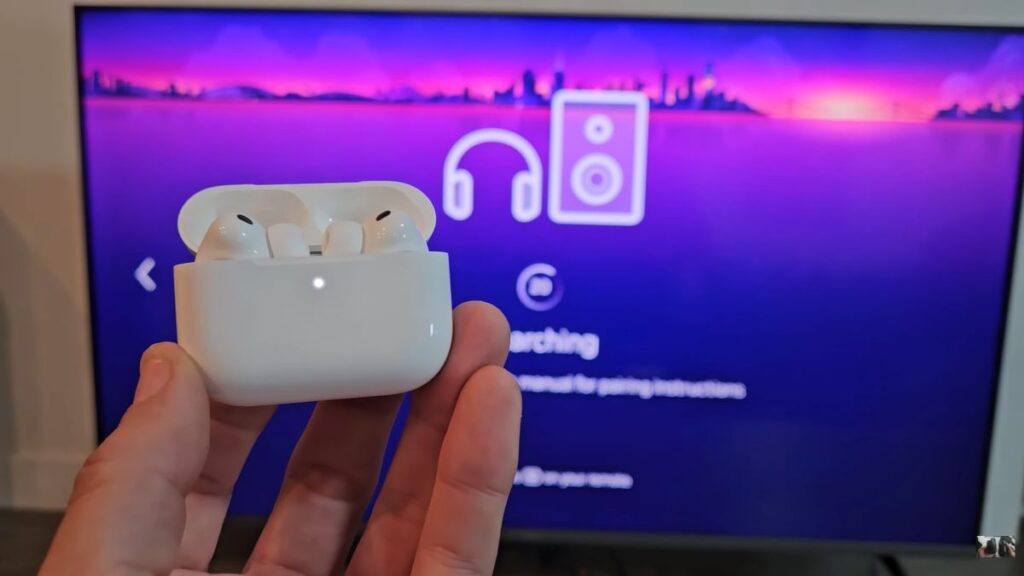
Tap that invisible front button twice. You should see a white blinking light on the case. That white blinking light is what you’re looking for because it means your AirPods are now discoverable and ready to connect.
This step can feel a little strange the first time because there’s no obvious button to press. But once you see that white light flashing, you’re good. Keep the AirPods close to the Roku TV so they show up quickly on the screen.
5. Select AirPods Pro on the Roku TV
After your AirPods are in pairing mode, look back at your Roku TV screen. Give it a moment, and you should see AirPods Pro appear in the list of available Bluetooth devices.
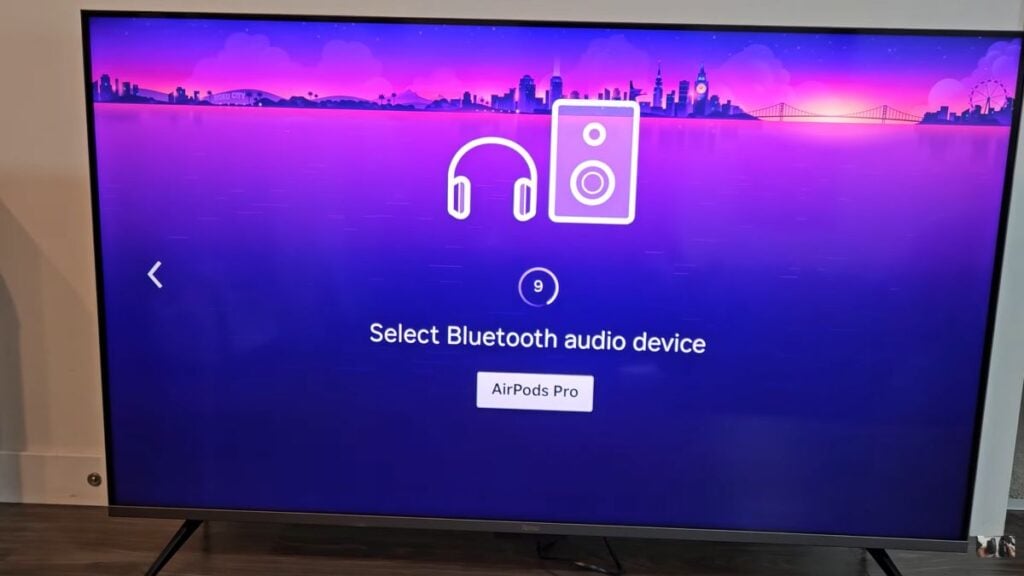
Use your Roku remote to select AirPods Pro. Once you do, your AirPods may play a small chime, which is a good sign that the connection worked. Roku should also show a message letting you know the setup is done.
You may also see a check mark next to AirPods Pro on the Bluetooth device list. That check mark means they’re currently connected. At that point, your TV audio should play through your AirPods instead of the Roku TV speakers.
6. Confirm the AirPods Are Connected
Once you select AirPods Pro on your Roku TV, take a second to make sure the connection actually worked. The easiest way to check is to look for a check mark next to AirPods Pro in the Bluetooth device list.
That check mark is Roku’s way of saying, “Yep, these are connected right now.” You may also hear a small chime in your AirPods when the connection goes through, which is another good sign that everything paired correctly.
At this point, your TV sound should come through your AirPods instead of the Roku TV speakers. Try playing a show or video for a few seconds. If you hear the audio in your AirPods, you’re all set. Nice and simple.
7. What to Do If AirPods Pro Do Not Show Up
If your AirPods Pro don’t appear on the Roku screen right away, don’t panic. Bluetooth can be a little picky sometimes, especially if the earbuds weren’t fully in pairing mode when Roku started searching.
First, make sure the AirPods case is open and the white light is blinking. That blinking white light is important because it means your AirPods are ready to be found. Also, keep the case close to the Roku TV while it’s searching. Don’t try pairing from across the room.
If they still don’t show up, back out of the Bluetooth search and try again. You can also close the AirPods case, reopen it, and put them back into pairing mode. If Roku is still not finding them, restart the Roku TV and check again.
And one more thing: make sure your TV actually has the Bluetooth headphones and speakers option. If that menu is missing, the problem probably isn’t your AirPods — it’s that your Roku model may not support direct Bluetooth pairing.
Read Also: How to Pair a Roku TV Remote Without a Pairing Button (Easy Step-by-Step Guide)