

Did you know your Roku has a bunch of hidden menus you can unlock with just a few clicks on the remote? They’re like little easter eggs—secret screens packed with diagnostic info, advanced settings, and even developer tools you probably didn’t know existed (but might end up loving).
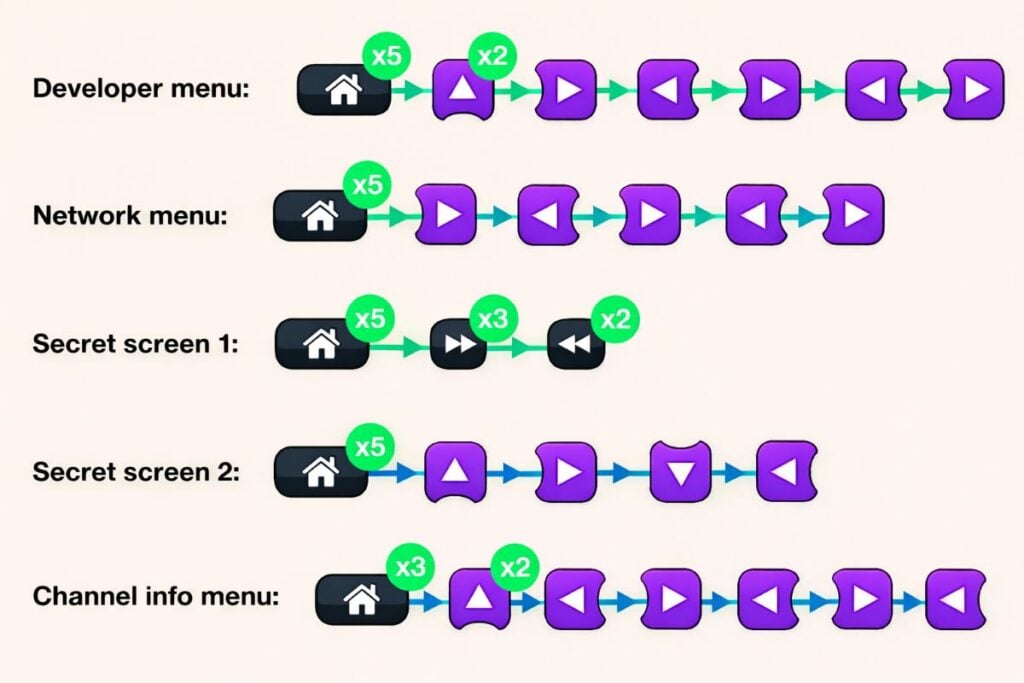
If you need a quick list of Roku’s hidden settings and menu screens, here are the top 5:
- Developer menu: Home (x5) > Up (x2) > Right > Left > Right > Left > Right
- Network menu: Home (x5) > Right > Left > Right > Left > Right
- Secret screen 1: Home (x5) > Fast Forward (x3) > Rewind (x2)
- Secret screen 2: Home (x5) Up > Right > Down > Left > Up
- Channel info menu: Home (x3) > Up (x2) > Left > Right > Left > Right > Left
If you’ve ever wanted to really dig into your Roku’s settings, this is where it gets fun. With the right button combinations, you can open up hidden menus that let you see—and sometimes tweak—things you won’t find in the regular Settings menu.
In this guide, we’ll walk you through exactly how to access all of Roku’s secret menus and what you can do with them.
1. Developer Mode
Press the Home button on your remote 3 times, press Up 2 times, then Right > Left > Right > Left > Right.
The Developer Settings menu is built for testing apps before they go live on Roku.
So if you’re a developer, this is basically your little playground. You can enable the Development Application Installer, sideload a test channel, and manage your rokudev account—all in one place.
Just one thing to keep in mind: Roku only lets you sideload one app at a time, so you’ll need to swap things out as you test.
Read Also: How to “Jailbreak” Your Roku and Sideload Secret Apps (The Hidden Hack Most People Don’t Know About)
2. Network Menu
Press the Home button on your remote 5 times, then press Right > Left > Right > Left > Right.
The Network menu isn’t exactly a secret—but Roku still gives you a handy shortcut on the remote to get there quickly.
Need to check your IP or MAC address? Want to make sure your internet is working properly? This is the place. You can also view or join Wi-Fi networks and even turn on a bandwidth-saver mode if you’re trying to cut down on data use.
3. Wireless Menu
Press the Home button on your Roku remote 5 times, then press Up > Down > Up > Down > Up.
Alright, this is where things really start to feel secret—it’s literally in the name.
The Wireless secret screen gives you a peek behind the curtain with details like signal strength, antenna info, glitch rates, and even on-device logs. You can also run a quick speed test or reset your Wi-Fi settings right from here.
If your streaming keeps buffering or cutting out, this is the first place you’ll want to check.
4. Reset and Update Menu (Secret Screen 1)
Press the Home button on your remote 5 times, then press Fast Forward > Fast Forward > Fast Forward > Rewind > Rewind.
You can always do a factory reset the usual way through Settings… but there’s also a shortcut if you’re in a hurry.
This hidden menu (called the “Secret Screen”) takes you straight to the Reset and Update options. From here, you can do a full factory reset, a quick refresh, or even a soft reset. You’ll also find tools to check for updates, test your USB ports, and more.
Super handy when your Roku starts acting up—and you just want to fix it fast without digging through menus.
5. Ads and Screenshots Menu (Secret Screen 2)
Press the Home button on your remote 5 times, then press Up > Right > Down > Left > Up.
You may have to restart your Roku for the changes to take effect.
Funny enough, this menu used to let you turn off screensaver ads completely. Those days are gone, but it still gives you some control over things like scrollable ads and how screenshots are saved.
It’s officially called the “Secret Screen 2” menu, and it’s packed with quirky options—like cycling the image service, changing screenshot formats, switching the home screen ad banner server, and even toggling the ad channel. It sounds technical, but it’s really just a behind-the-scenes control panel for how your Roku displays content.
6. HDMI Menu
Press the Home button on your remote 5 times, then press Down > Left > Up > Up > Up.
Ever wondered what your Roku can really handle when it comes to picture quality? This is where you’ll find out.
Head into the HDMI menu and you can see all the details—like supported resolutions, refresh rates, and HDR features. You can also switch inputs or even run a quick TV input test right from here. It’s like a little control center for your display.
Read Also: How I turned my cheap Roku TV into a piece of art (like the $3,000 Samsung Frame TV)
7. Platform Menu
Press the Home button on your remote 5 times, then press Fast forward > Play > Rewind > Play > Fast Forward.
Want to peek behind the curtain and see what your Roku is really doing? This hidden screen shows all kinds of detailed info—like CPU temperature, memory usage, your Wi-Fi network (SSID), connected remotes, and even their battery levels.
It’s not just a stats page either—it’s like a control hub. From here, you can jump into extra hidden menus for things like remote diagnostics, wireless settings, IPv6, and even a log that tracks every button you’ve pressed since the last restart. Pretty wild, right?
To open it, press: Home five times, then Fast Forward, Play/Pause, Rewind, Play/Pause, Fast Forward.
If you’ve ever been curious about your Roku’s inner workings—or you’re troubleshooting something tricky—this is where all the good stuff lives.
8. Channel Info Menu
Press the Home button on your remote 3 times, Press Up 2 times, then press Left > Right > Left > Right > Left.
Ever wondered exactly which version of Netflix, Disney+, or Peacock you’re using? This little hidden menu shows you all the details.
Once you open it, you’ll see every channel installed on your Roku, along with its version and build number. It’s super handy if you’re trying to troubleshoot an app or figure out why something isn’t working quite right.
You can even highlight a channel and uninstall it right there—perfect for quickly fixing a glitchy app without digging through settings.
9. Quick Reboot Shortcut
Press the Home button on your remote 5 times, then press Up > Rewind > Rewind > Fast Forward > Fast Forward.
Need a fast restart without digging through menus? Just grab your remote and press: Home five times, then Up, Rewind twice, and Fast Forward twice.
Your remote might freeze for a second—that’s totally normal. Give it a moment, and your Roku will reboot on its own. Easy.
10. TCL TV Menu
Press the Home button on your remote 5 times, then press Rewind > Down > Fast Forward > Down > Rewind.
If you have a TCL Roku TV, there’s actually a special hidden menu just for your TV.
It’s called the “TV Secret Screen,” and it lets you tweak HDR settings that you won’t find in the usual menus. On most Roku devices, these settings are easy to access—but on TCL models, you’ll need this little secret code to get to them.
11. Bitrate Override Menu
Press the Home button on your remote 5 times, press Rewind 3 times, then press Fast Forward 2 times.
If you’ve got an older Roku, this menu might still work for you.
Back in the day, it actually let you set a specific bitrate for your channels—but honestly, it never worked all that well. These days, you can’t really change those settings anymore, but on some older models, you can still peek at the old options and see how things were set up.
Read Also: How to Make Your Roku TV Pleasantly Aesthetic in 4 Easy Steps