

Roku is one of those devices that seems simple at first — you plug it in, open your favorite streaming app, and start watching. But once you dig a little deeper, there are actually a lot of handy features hiding in the settings and menus.
Some of these tricks can save you money. Others make your Roku easier to use, more private, or just a little more fun. You can rearrange your favorite apps, listen through headphones, protect your account with a PIN, mirror your phone to the TV, and even compare rental prices before paying for a movie.
The best part? Most of these settings only take a minute or two to set up. So if you’ve been using your Roku the same way since the day you bought it, these simple hacks can help you get a lot more out of it.
1. Mirror Your Phone, Tablet, or Computer to Your Roku
Your Roku can do more than stream shows and movies. You can also use it to show what’s on your phone, tablet, or computer right on your TV screen.
This is great for sharing photos, playing videos, showing a presentation, or just viewing something on a bigger screen.
Mirror Apple Devices With AirPlay
If you use an iPhone, iPad, or Mac, Roku makes this pretty easy because many Roku sticks, boxes, and TVs have Apple AirPlay built in.
To make sure it’s turned on, go to Settings > Apple AirPlay and HomeKit on your Roku.
Once that’s set up, just tap the AirPlay button on your Apple device and choose your Roku. You can send videos, music, photos, or even mirror your Mac screen to the TV.
Cast From Android Devices
Android users can mirror to Roku too, though the exact steps can vary depending on the phone you have.
If you have a Samsung Galaxy phone, the process is especially simple. Swipe down from the top of the screen with two fingers, tap Smart View, and your Roku should appear as an option.
Just make sure your phone and Roku are connected to the same Wi-Fi network.
Mirror Your Windows Screen
You can also mirror a Windows computer to your Roku, but you’ll need to turn the feature on first.
On your Roku, go to Settings > System > Screen mirroring.
Then, on your Windows computer, click the volume and Wi-Fi icons in the bottom-right corner of the screen. Choose Display, then select your Roku from the list.
As with the other methods, your Roku and computer need to be on the same Wi-Fi network for this to work.
2. Use Your Roku Remote to Control Your TV
Your Roku remote can do more than control your Roku. In many cases, you can also use it to turn your TV on and off and adjust the volume.
Roku usually asks if you want to set this up when you first connect your device, but you can still do it later.
Just go to Settings > Remotes & devices > Remotes, then choose the remote you’re using. From there, select Set up remote for TV control.
Once it’s set up, you won’t have to keep switching between two remotes just to change the volume or turn off the TV.
3. Listen Through Your Phone With the Roku App
Don’t have Bluetooth headphones? Roku has another clever way to listen privately.
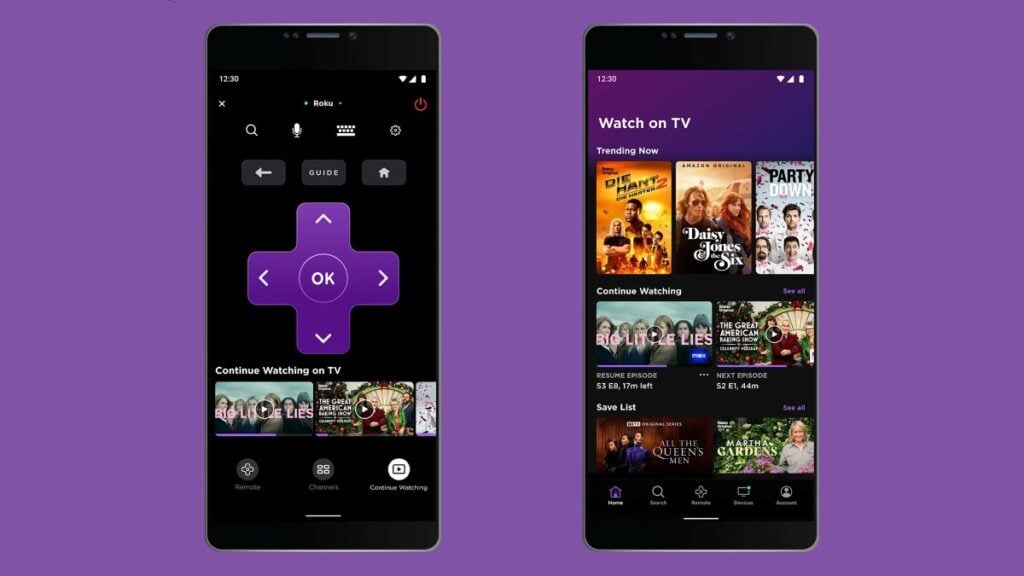
Download the Roku app on your smartphone, then plug headphones into your phone. From the app, tap Remote control, then press the headphone button.
Your Roku audio will play through your phone, straight into your headphones.
It’s a handy little trick when someone else is sleeping, reading, working, or just doesn’t want to hear what you’re watching.
4. Show Your Photos on the Big Screen
Your Roku isn’t just for movies and shows. You can also use it to display your own photos on your TV, which is perfect for family pictures, vacation memories, or just turning your screen into a simple photo slideshow.
Roku lets you do this through Photo Streams, which can pull images from your photo library and show them on the big screen.
To set it up, go to the Photo Streams page on the Roku website, sign in to your Roku account, and follow the steps there.
Once it’s ready, your TV can become a digital photo frame whenever you’re not streaming something.
4. Turn On Captions Only When You Replay Something
Closed captions are helpful, but you may not want them on all the time. Roku has a handy setting that turns captions on only when you rewind or skip backward.
This is perfect for those moments when you miss a line of dialogue and don’t want to replay the scene three times.
To turn it on, go to Settings > Accessibility > Captions mode > On replay.
Just keep in mind that the streaming app you’re using also needs to support this feature, so it may not work with every app.
5. Find the Cheapest Place to Rent a Movie
Before you rent a movie, don’t just grab it from the first app you open. Roku can help you compare prices across different streaming services.
From the main Roku menu, use Search to look up the movie or show you want. Roku will show you where it’s available and how much it costs on different apps.
This is especially useful because the same movie might be cheaper on one service than another. A quick search can save you a few dollars, especially if you rent movies often.
6. Pair Bluetooth Headphones for Private Listening
If your Roku device supports Bluetooth, you can connect your wireless headphones and listen without bothering anyone else in the room.
This is especially helpful if you like watching TV late at night, live with other people, or just want a more personal listening experience.
To pair your headphones, go to Settings from the main Roku menu, then choose Remotes & devices > Wireless headphones.
Once your headphones are connected, the sound will play through them instead of your TV speakers.
7. Use Guest Mode When Friends or Family Visit
Having guests over is great. Having them accidentally mess up your watch history, recommendations, or “continue watching” list? Not so great.
That’s where Guest Mode comes in handy.
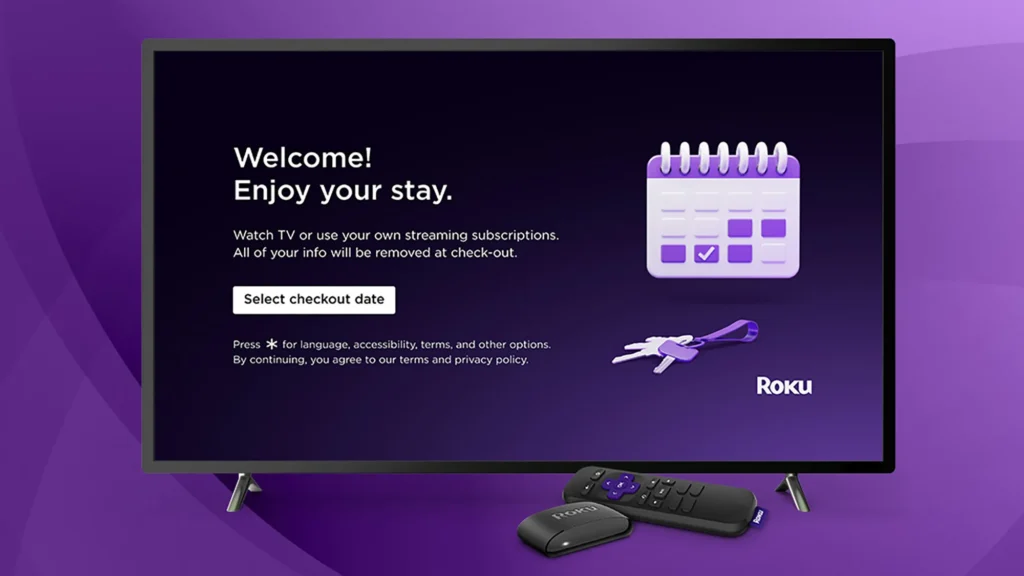
When you turn on Guest Mode, your Roku signs out of all your apps and restarts in a fresh setup that’s ready for someone else to use. Your guests can sign in with their own accounts, and when they’re done, your personal recommendations and viewing progress stay untouched.
To turn it on, go to Settings from the main Roku menu, then choose Guest Mode > Enter Guest Mode.
8. Set Up a PIN to Keep Your Roku Protected
If you have young kids at home — or even a curious roommate who loves clicking around — it’s a good idea to add a PIN to your Roku account.
A Roku PIN can help prevent accidental purchases or stop someone from adding new channels without your permission. The nice thing is, you don’t have to set this up directly on your TV.
Just go to your Roku account page on the web, then look for PIN/parental controls on the left-hand side. From there, you can create a new PIN or update your current one. It’s a simple step, but it can save you from surprise charges later.
9. Save Shows and Movies to Your Roku Watchlist
We’ve all had that moment where we spot a movie or show that looks good, but we don’t have time to watch it right then.
Instead of trying to remember the title later, just add it to your Roku watchlist.
To do this, select a movie or show from your Roku home screen. On its listing page, choose Save to add it to your list.
Later, you can go to Save List from the main menu and see everything you’ve saved in one place. It’s a simple way to keep track of what you want to watch next without having to search for it all over again.
10. Move Your Favorite Apps to the Top
Here’s a simple Roku trick that makes a big difference: move your most-used apps to the top of your home screen.
That way, you don’t have to scroll around every time you want to open Netflix, Hulu, YouTube, or whatever you watch most.
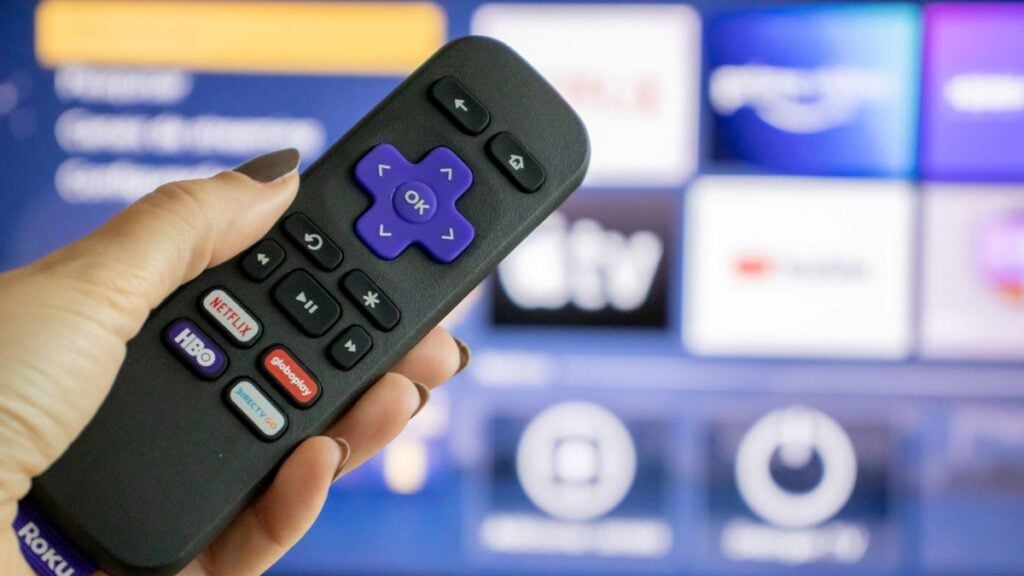
To do it, highlight any app tile on your Roku home screen, then press the star button on your remote. A menu will pop up with options like Move app and Move app to top.
Use Move app if you want to place it exactly where you like, or choose Move app to top if you just want it bumped up right away.
11. Show Your Photos on the Big Screen
Your Roku isn’t just for movies and shows. You can also use it to display your own photos on your TV, which is perfect for family pictures, vacation memories, or just turning your screen into a simple photo slideshow.
Roku lets you do this through Photo Streams, which can pull images from your photo library and show them on the big screen.
To set it up, go to the Photo Streams page on the Roku website, sign in to your Roku account, and follow the steps there.
Once it’s ready, your TV can become a digital photo frame whenever you’re not streaming something.
12. Give Your Roku a Fresh New Look
You don’t have to stick with the default Roku home screen forever. If you want your Roku to feel a little more personal, try changing the theme.
A theme changes the overall look of your Roku, usually including the wallpaper and screensaver. To browse your options, go to Settings on your Roku device, then choose Themes.
You’ll find different designs from Roku, along with themes created by the Roku community. And don’t worry — if you try one and decide you miss the original look, you can always choose Restore default theme to switch back.
13. Use Roku’s Voice Search Instead of Typing Everything
Typing movie titles with a remote can get annoying fast, especially when you’re searching for something with a long name. That’s where Roku’s voice search comes in handy.
If you’re using the Roku mobile app, just tap and hold the microphone icon for about a second. This will open the voice search screen. From there, say the name of the movie, show, actor, or app you’re looking for, and Roku will search for it automatically.
Some Roku remotes also have voice search built in. If yours does, you’ll see a microphone button on the remote. Press and hold it, say what you want to find, and Roku will do the searching for you.
It’s much faster than clicking through letters one by one.
14. Pause Live TV on Your Roku
This is one of those features Roku TV owners might not even realize they have.
If you have a Roku TV, you may be able to pause live TV — but there are a few requirements. First, it has to be a Roku TV, not just a Roku streaming stick or box. Second, you need to have an over-the-air antenna connected. And third, you’ll need to plug in a USB storage stick with at least 16GB of space.
Once everything is set up, Roku uses the USB stick to temporarily save what you’re watching. That means you can pause live TV for up to 90 minutes.
So if you need to grab a snack, answer the door, make coffee, or take a quick bathroom break, you don’t have to miss what’s happening on screen.
15. Use Roku’s Hotel and Dorm Connect When Traveling
One of the best things about a Roku Streaming Stick is that you can take it with you when you travel. Just toss it in your bag, plug it into a TV, and you can access your favorite apps almost anywhere.
The problem? Hotel, dorm, and office Wi-Fi networks often make you sign in through a web browser before you can actually get online. That can be annoying when you’re trying to connect a streaming device.
That’s where Hotel and Dorm Connect comes in.
If your Roku is running Roku OS 7.0 or newer, this feature helps you connect to those browser-based Wi-Fi networks more easily. When you’re setting up the network connection, choose I am at a hotel or college dorm, then follow the instructions on screen.
It’s a small feature, but it makes traveling with your Roku much less frustrating.
16. Set Up a Roku “Alarm” to Wake Up to Your TV
Roku doesn’t have a built-in alarm clock feature, but there are still a couple of creative ways to make your TV turn on and start playing something at a certain time.
The easiest option is to use the Google Home app. You can create a custom routine that turns on your Roku-connected TV and opens a supported channel at a scheduled time.
To try this, open the Google Home app, go to Routines > Add a Routine, and follow the steps on screen.
Just keep in mind that not every Roku app works with Google Home routines. Many of the apps that do work are live-streaming channels, such as news channels.
There’s also a more advanced option called the Roku-Stream-Alarm project on GitHub. This lets you schedule commands that tell your Roku what to play at a specific time. But this one is definitely more technical. You’ll need some programming knowledge, and you’ll also need to enable Developer Mode on your Roku.
So for most people, Google Home is the easier route. But if you like tinkering with tech, the GitHub option gives you more control.
Read Also: How to “Jailbreak” Your Roku and Sideload Secret Apps