
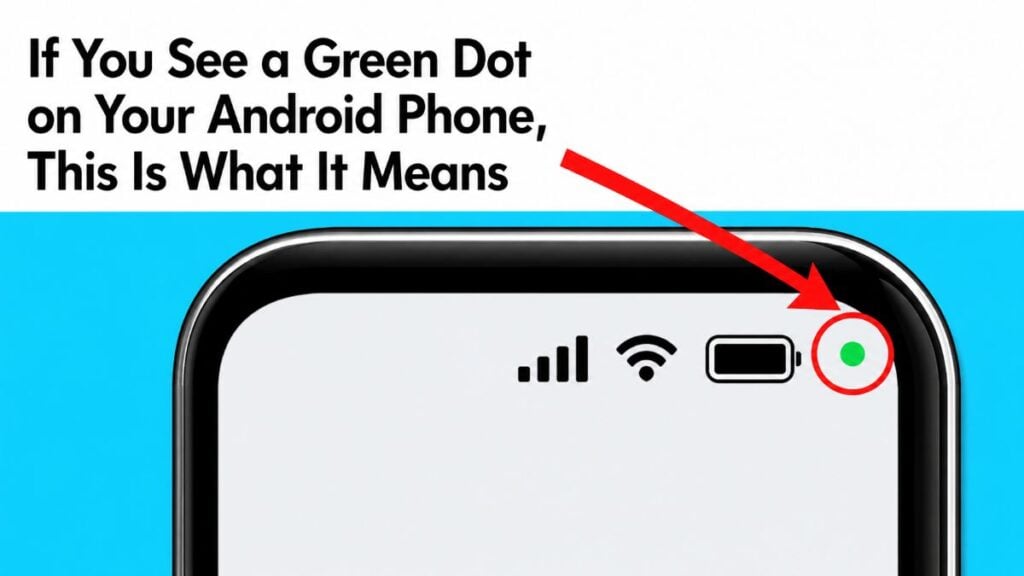

That tiny green dot can feel a little creepy…
You’re just using your phone like normal. Maybe you’re checking messages, scrolling through photos, or opening an app you use every day. Then suddenly, you notice a tiny green dot near the top corner of your screen. It may only show up for a second. Or maybe it stays there long enough to make you wonder, “Wait… what is that?”
And honestly, it’s a little unsettling the first time you see it. These days, we hear so much about apps tracking us, phones listening to us, and privacy being harder to protect. So when a random green dot appears, it’s natural for your mind to jump to the worst-case scenario. You might wonder if someone is watching through your camera or listening through your microphone.
The good news is, in most cases, that little green dot is not a sign your phone has been hacked. It is actually a privacy feature built into Android. It appears when an app is using your camera or microphone. So while it may look suspicious at first, it is really your phone trying to be helpful.
Still, there are certain times when you should pay closer attention, especially if the dot shows up when you are not using anything that should need your camera or microphone.
1. The green dot means your camera or microphone is being used
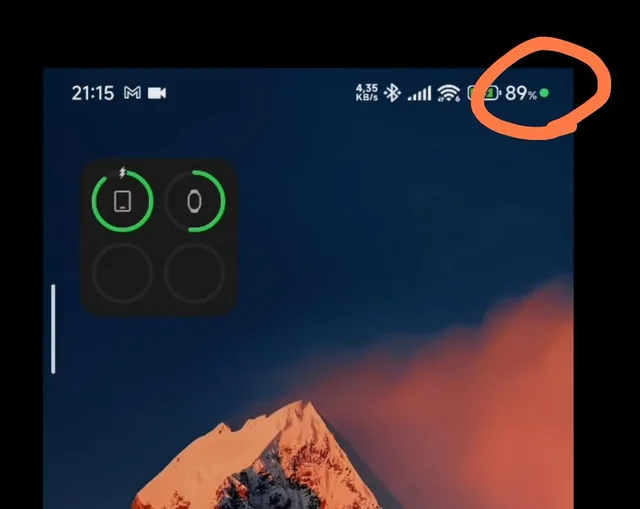
The simplest way to understand the green dot is this: your Android phone is letting you know that something is using your camera or microphone right now. It is like a little warning light. Not necessarily a scary warning, but more of a “just so you know” message from your phone.
For example, if you open your camera to take a picture, the green dot makes sense. If you are recording a video, sending a voice message, joining a Zoom call, scanning a QR code, or using speech-to-text, the dot may appear because your phone is actively using either the camera or microphone. In those situations, there is usually nothing to worry about.
Where it gets important is when the dot appears and you have no idea why. Maybe you are not taking a photo. Maybe you are not on a call. Maybe you are just looking at your home screen and that little green dot pops up out of nowhere. That does not automatically mean something bad is happening, but it does mean you should check which app caused it.
The dot itself is not the problem. The real question is: which app is using your camera or microphone, and does that app actually need access?
2. Why Android added this little privacy warning
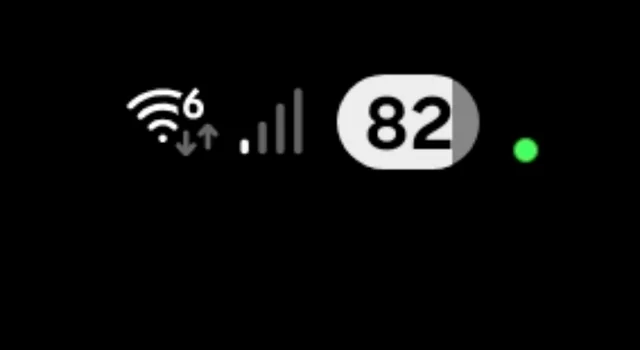
The green dot is there because phones have become a much bigger part of our private lives than they used to be.
Think about how much we do on them now. We take family photos, make video calls, send voice messages, scan documents, use banking apps, ask questions out loud, and sometimes even unlock our phones with our faces. So naturally, the camera and microphone are two of the most sensitive parts of your phone.
The tricky part is that many apps ask for access to these features. Some have a perfectly good reason. A video chat app obviously needs your camera. A voice recorder needs your microphone. A banking app may need your camera to verify your identity. But other apps may ask for permissions that do not really match what they do.
And if you are like most people, you may have tapped “Allow” at some point without thinking much about it.
That is why Android added this little privacy warning. The green dot gives you a quick visual clue that something private is happening in the background. Think of it like the little red recording light on an old camcorder. It does not mean something bad is happening, but it does mean your attention is needed. It is your phone’s way of saying, “Just so you know, your camera or microphone is being used right now.”
3. How to check which app is causing the green dot
If you see the green dot and you are not sure why it is there, do not panic. You can usually check what caused it in just a few seconds. When the green dot appears, swipe down from the top of your screen. This opens your quick settings or notification area. From there, you should be able to tap the green indicator or privacy icon to see what is being used.
Your phone may tell you whether the camera, microphone, or both are active. It may also show the name of the app using them.
For example, if it says Camera, WhatsApp, Zoom, Google, or your phone’s keyboard, that may make sense depending on what you were doing. But if it shows an app you do not recognize, or an app that should have no business using your camera or microphone, that is when you should slow down and look closer.
Depending on your phone, you may also be able to tap again to manage that app’s permissions. This is where you can decide whether the app should be allowed to use your camera or microphone all the time, only while you are using it, or not at all.
Just keep in mind that the wording may look a little different depending on whether you have a Samsung, Pixel, Motorola, OnePlus, or another Android phone. But the basic idea is the same: tap the green dot, see which app is using it, then decide whether that access makes sense.
4. Common innocent reasons the green dot appears
Before you start worrying, it helps to know that the green dot often appears for completely normal reasons. Most of the time, it simply means your phone is doing exactly what you asked it to do. If you just opened the camera, joined a video call, recorded a voice message, or scanned a QR code, then seeing that green dot makes perfect sense.
It can also show up during little everyday moments you may not even think about. Maybe you tapped the microphone on your keyboard so you could speak instead of type. Maybe you used a translation app. Maybe you opened Instagram, Facebook, TikTok, WhatsApp, Zoom, or Messenger, and the app briefly checked your camera or microphone because of a feature inside it. Even some banking apps may use your camera for facial verification or identity checks.
So if the green dot appears right after you open an app that clearly needs your camera or microphone, there is usually no reason to panic. In that case, the dot is not warning you that something strange is happening. It is just letting you know, “Hey, this app is using one of your phone’s sensitive features right now.” And honestly, that is a good thing. It means your phone is being more transparent with you.
5. When the green dot should make you pause
Now, there are times when the green dot deserves a closer look. Not because you need to panic, but because your phone may be trying to tell you something worth checking.
For example, if the green dot appears when you are not taking a picture, not recording audio, not using voice typing, and not on a video call, it is fair to wonder what is going on.
You should especially pay attention if the dot shows up while your phone is just sitting there, or if it keeps coming back after you already closed an app. Another red flag is when the dot points to an app you do not recognize, or an app that has no obvious reason to use your camera or microphone. A video call app using your microphone makes sense. A random game, coupon app, or flashlight app using it? That is the kind of thing you may want to question.
One strange green dot does not automatically mean someone is spying on you. Phones can be glitchy, apps can run in the background, and sometimes a feature may trigger the microphone or camera for a harmless reason. But repeated, unexplained access is worth checking.
If the same unfamiliar app keeps asking for camera or microphone access, or if the green dot started appearing after you downloaded something new, take a few minutes to review your permissions. It is better to be a little cautious now than to ignore something that feels off.
6. What to do if you do not recognize the app
If the green dot shows up and your phone says an app you do not recognize is using your camera or microphone, take a breath first. It does not automatically mean something terrible is happening.
Sometimes an app name looks different from what you expect, or a system feature may be listed in a way that sounds unfamiliar. But it is still worth checking, especially when your privacy is involved.
Start with the simple things. Close the app, then restart your phone. A restart can sometimes stop an app that got stuck running in the background. After that, go into your settings and check that app’s permissions. If the app does not truly need your camera or microphone, turn that access off.
For example, a flashlight app does not need your microphone. A calculator app does not need your camera. When permissions do not match the purpose of the app, that is a red flag.
And if you do not remember downloading the app at all, it may be best to remove it. You can also update Android and update your apps, because updates often fix security and privacy problems.
Going forward, try to download apps only from the Google Play Store or from sources you truly trust. It is not about being paranoid. It is just about being careful with the parts of your phone that can see and hear what is going on around you.
7. How to change camera and microphone permissions
The good news is that Android gives you a lot of control over which apps can use your camera and microphone. You do not have to leave every permission on forever just because you tapped “Allow” once months ago. You can go back and change your mind anytime.
To do this, open your phone’s Settings app. Then look for something like Privacy, Security & privacy, Permission manager, or Privacy dashboard. The exact words may be a little different depending on whether you have a Samsung, Pixel, Motorola, OnePlus, or another Android phone, but you are looking for the section that controls app permissions. Once you find it, tap Camera or Microphone.
From there, you should see a list of apps that have access. Some will make perfect sense. Your camera app needs camera access. Your video call app probably needs both camera and microphone access. But if you see an app that does not need that kind of access, change it. You may be able to choose Allow only while using the app, Ask every time, or Don’t allow. A good rule of thumb is this: give apps the least amount of access they need to work properly.
8. Use the Privacy Dashboard to see past activity
The green dot is helpful because it tells you what is happening in the moment. But sometimes it disappears so fast that you barely have time to react. You see it flash, you look up, and suddenly it is gone. That can be frustrating because now you are left wondering, “What was that?”
That is where the Privacy Dashboard can help. Instead of only showing what is happening right now, it lets you look back and see which apps recently accessed sensitive features like your camera and microphone. This can be especially useful if the green dot keeps appearing at random times and you want to figure out which app is behind it.
When you open the Privacy Dashboard, look for camera and microphone activity. You should be able to see which apps used them and when. Then ask yourself whether the timing makes sense. If your video call app used the microphone during a call, that is normal. If a random app used your microphone while you were not using it, that is worth checking. The goal is not to panic over every little thing. It is simply to notice patterns and make sure your apps are behaving the way they should.