

You know that moment when you’re about to take a photo, and suddenly that dreaded “Storage Full” message pops up? It’s honestly one of the most frustrating things. It feels like your phone is working against you, not with you. And instead of enjoying the moment, you’re stuck deciding what to delete… which is the last thing anyone wants to do.
Here’s the thing most people don’t realize: your iPhone isn’t actually full because of your memories. It feels that way, but in reality, a big chunk of your storage is being eaten up by things you don’t even think about—like old apps you forgot you downloaded, cached data, and random background files quietly piling up over time. It’s like a junk drawer you never cleaned out… except it’s happening inside your phone.
And let me just say this clearly—because a lot of people assume the worst—you do not have to start deleting your photos or videos to fix this. You also don’t need to rush out and buy a new phone just because yours is “full.” That’s the myth.
The truth is, with a few simple setting tweaks (the kind that take just a couple of minutes), you can free up a surprising amount of space almost instantly. No stress. No tough decisions. Just a smarter way to use what you already have.
Why Your iPhone Storage Fills Up So Fast
Let’s talk about what’s really going on behind the scenes, because once you understand this, everything starts to make sense.
First, photos and videos today are huge. We’re talking high-resolution images and 4K videos that look amazing—but they come at a cost. Just one minute of 4K video can take up hundreds of megabytes. So even if you’re not taking thousands of videos, a few here and there can quietly add up without you realizing it.
But honestly? Photos aren’t even the biggest problem most of the time.
The real culprit is what I like to call “digital clutter.” Think about all the apps you’ve downloaded over the years—airline apps, shopping apps, random games, maybe something you needed once and never touched again. They just sit there, taking up space. And on top of that, your phone stores cached data (basically temporary files) from apps, websites, and messages. You don’t see it, you don’t think about it, but it’s there… slowly filling up your storage.
What makes it worse is that your iPhone’s default settings don’t really help you manage any of this. By default, it saves everything in full quality, keeps data from apps, and rarely clears things out on its own. So over time, your phone just keeps collecting more and more “stuff” until one day, you hit that storage limit and wonder how it happened.
The good news? Once you know where all that space is going, it becomes so much easier to fix. And you don’t have to do anything drastic to get your storage back.
The Smart (Lazy) Strategy to Free Up Space
Alright, here’s where things get really simple—and honestly, kind of a relief.
Most people think freeing up iPhone storage means sitting there for an hour deleting photos, videos, and apps one by one. You know… the painful kind of cleanup where you’re debating whether to keep a blurry photo from three years ago just in case. But the “lazy” strategy? It skips all of that.
Instead of deleting things you care about, you’re just going to optimize how your phone stores them.
Think of it like this: your phone doesn’t actually need to carry everything in full size all the time. It just does that by default. But once you tweak a couple of settings, your iPhone gets a lot smarter—it keeps what you need on your device and quietly moves the heavy stuff elsewhere without you even noticing.
And the best part? You already have everything you need built right into your phone. No extra apps, no complicated setup, no tech headaches. Just a few taps in your settings and you’re good to go.
There are really only two simple moves you need to know here:
- One is your set-it-and-forget-it solution. You turn it on once, and your phone basically manages your storage for you moving forward. This is the one that gives you long-term breathing room without you having to think about it again.
- The other is your quick fix for when you need space right now. Like when you’re trying to download an update or take a video and your phone suddenly says, “Nope, I’m full.” This trick buys you instant space without deleting anything important.
Once you start using these two together, something kind of magical happens… you stop worrying about storage altogether. No more panic when you see that warning. No more hesitation before taking photos. Your phone just works the way it should—and you get to keep every memory without the stress.
Method #1: Optimize Photos and Videos Without Deleting Anything
This is hands down the easiest win—and once you turn it on, you’ll wonder why you didn’t do it sooner.
Let me explain it in a simple way. Right now, your iPhone is probably keeping full-quality versions of every single photo and video right there on your device. That sounds great… until you realize how much space that actually takes up. Especially if you’ve been snapping photos for years or recording videos in 4K (which, let’s be honest, most of us don’t even think about when we hit record).
Here’s the smarter way to handle it: you let your phone keep the “lightweight” versions, and quietly store the full-quality originals somewhere else—without you losing anything.
Why This Works
Think about it like this—do you really need the full-resolution version of every photo sitting on your phone all the time? Probably not.
Most of the time, you’re just scrolling through your pictures, sharing them, or showing them to someone. For that, a slightly smaller version looks exactly the same to your eyes. Meanwhile, the original high-quality file can just sit safely in the cloud, ready whenever you need it.
And those big files add up fast. A single minute of 4K video can take up hundreds of megabytes. Multiply that by months or years, and it’s no surprise your storage fills up so quickly.
This setting basically says:
“Hey, keep my memories… just don’t let them take over my phone.”
How to Turn It On
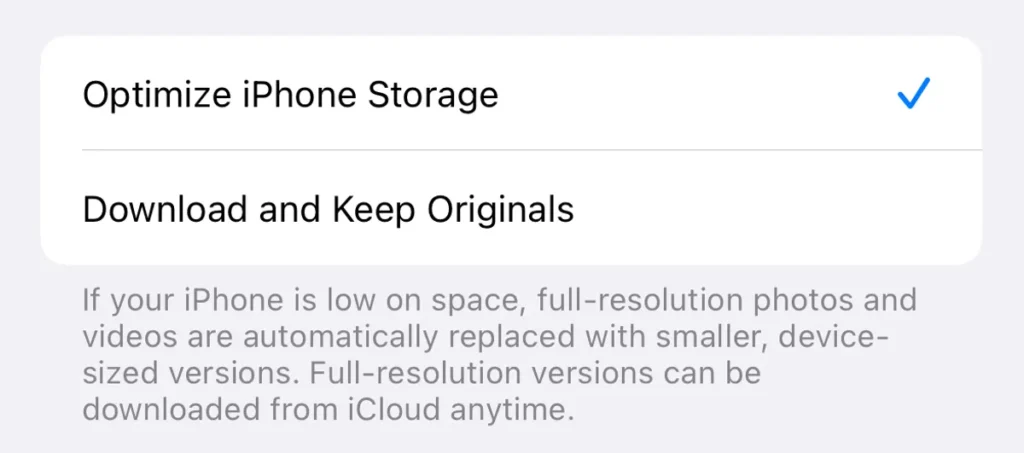
This part takes less than a minute. Seriously.
- Open Settings
- Tap Photos
- Turn on iCloud Photos (if it’s not already on)
- Then toggle Optimize iPhone Storage
That’s it. No complicated setup, no tech skills needed.
Now your phone will start doing the work for you in the background.
What Happens Behind the Scenes
Once this is turned on, your iPhone gets a lot smarter about storage.
- The full-quality versions of your photos and videos are safely stored in iCloud
- Your phone keeps smaller, space-saving versions locally
- And whenever you want the original? It downloads instantly when you tap on it
So from your perspective, nothing really changes. Your photos are still there, they still look great, and you can still access everything like normal.
The only difference? You suddenly have way more free space.
Bonus: iCloud Storage Upgrade Options
Now, depending on how many photos and videos you have, you might run out of iCloud space at some point. But honestly, upgrading it is usually way cheaper—and easier—than upgrading your phone.
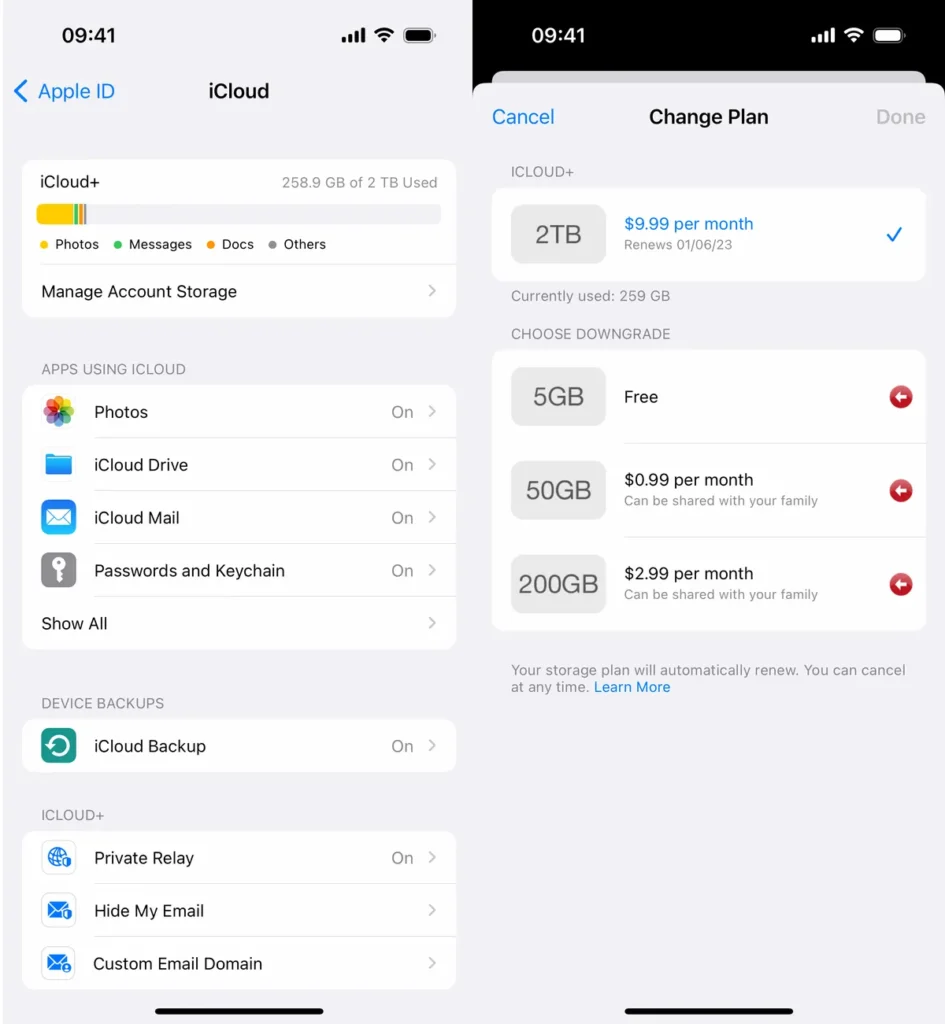
Most plans are just a few dollars a month, and they give you plenty of room to store years of memories. Plus, you get a few extra perks like enhanced privacy features, which is a nice bonus.
If you ever need more space, you can upgrade right from your phone in a few taps. No hassle.
Method #2: Offload Apps You Rarely Use
This is one of those little tricks that feels like a cheat code once you know it.
We all have those apps sitting on our phones… you know the ones. Maybe it’s the airline app you used once for a trip, a shopping app you downloaded during the holidays, or some random tool you thought you’d use more often. They just sit there quietly, taking up space, even though you barely open them.
Now normally, your only option would be to delete them. But that’s annoying, right? Because then you lose your data, your settings, and sometimes you have to log in all over again when you reinstall it later.
That’s where offloading comes in—and honestly, it’s the perfect middle ground.
Why Offloading Beats Deleting
Think of offloading like putting something in storage instead of throwing it away.
When you offload an app:
- The app itself gets removed (which frees up space)
- But all your data stays right on your phone
So if you ever need it again, you just tap it, and it comes right back like nothing ever happened. No starting over. No re-entering passwords. No frustration.
It’s basically saying, “I don’t need this right now… but I’m not ready to let it go completely.”
How to Offload Apps
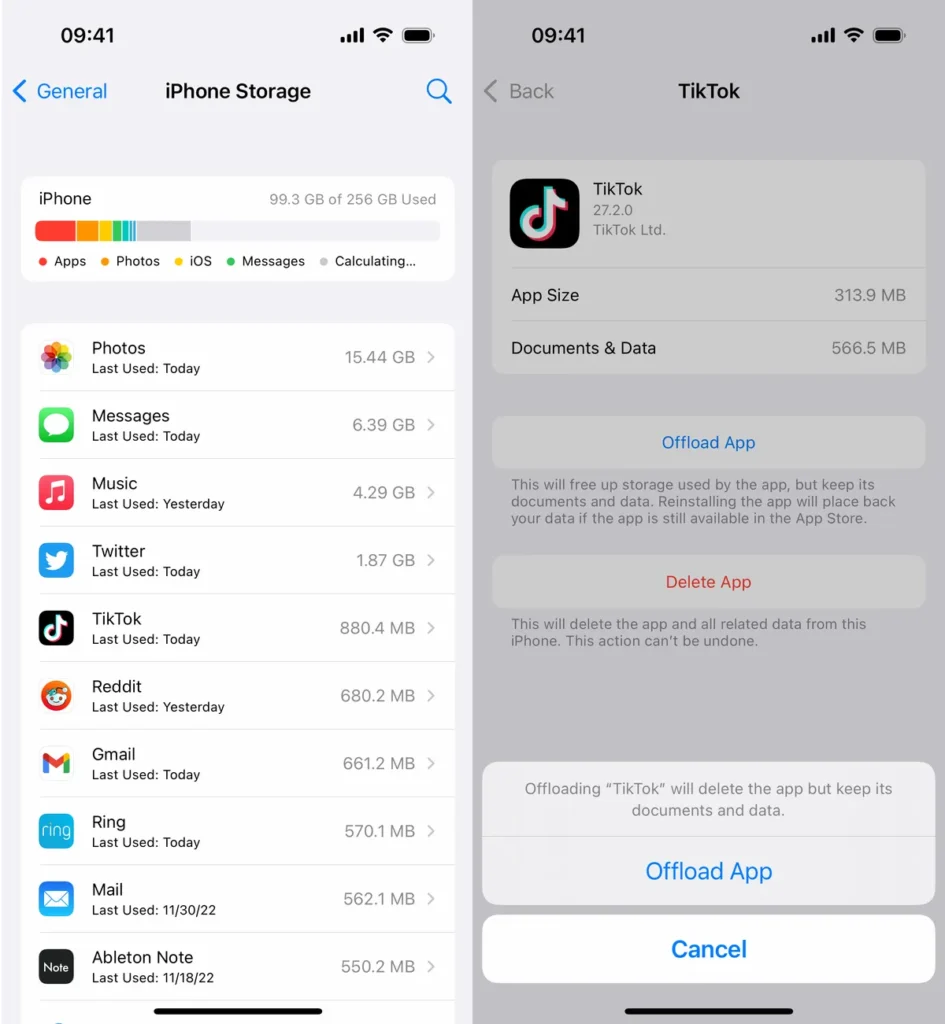
This part is super simple, and you can do it in under a minute.
- Go to Settings
- Tap General
- Tap iPhone Storage
Give it a second to load, and you’ll see a list of all your apps—usually sorted by how much space they’re taking up.
Now just:
- Tap on any app you don’t use often
- Hit Offload App
That’s it. Your phone will remove the app, but keep everything else saved.
And honestly, you might be surprised how much space you free up just doing this with a few bigger apps.
When to Use This Trick
This is especially helpful in those “uh-oh” moments.
Like:
- When you’re trying to update your iPhone and it says you don’t have enough space
- When you want to download something quickly
- Or when your phone suddenly feels full out of nowhere
Instead of panicking or deleting photos, you can just offload a few apps and instantly create breathing room.
It’s quick, painless, and doesn’t require any tough decisions.
How to Restore Offloaded Apps
Here’s the best part—it’s ridiculously easy to bring an app back.
If you see the app icon on your home screen (it’ll have a little cloud symbol), just tap it. Your phone will re-download it, and everything will be exactly how you left it.
No logging in again. No lost data. No hassle.
Pro Tips to Maximize Storage Even Further
Alright, once you’ve done the two big moves (optimizing photos and offloading apps), you’re already in a much better place. But if you want to keep your phone running smoothly long-term, there are a few simple habits that make a big difference—and they don’t take much effort at all.
First, every now and then, take a quick peek at your storage. I’m not talking about a deep clean or anything intense—just pop into your storage settings and scroll through the list of apps. You’ll usually spot a few that make you go, “Wait… why do I still have this?” Those are easy wins. Even removing or offloading just one or two large apps can free up more space than you’d expect.
Second, if you turned on iCloud Photos, try to leave it on consistently. It works best when it’s just quietly doing its thing in the background. If you keep switching it off and on, your phone can’t really optimize properly, and you won’t see the full benefit. Think of it like letting your phone stay in “maintenance mode” without you having to think about it.
And honestly, the real magic happens when you combine both methods. Your photos stop taking over your storage, and your unused apps aren’t just sitting there wasting space. It’s a simple one-two combo that keeps your phone feeling light and responsive without you constantly managing it.
No overthinking. No constant cleanup. Just a few smart tweaks that keep everything running the way it should.
Conclusion: More Space, Zero Sacrifice
At the end of the day, this isn’t about becoming super organized or spending hours cleaning up your phone. It’s about working smarter, not harder.
You don’t need to go through your camera roll and delete memories you care about. You don’t need to stress over every app or feel like your phone is constantly “full.” Most of the problem comes down to how your phone is set up—not how you’re using it.
And the best part? The fix is actually pretty simple. A couple of small setting changes, a quick check-in every now and then, and suddenly your phone has room to breathe again. You can take photos without hesitation, download updates without frustration, and just use your phone normally.
That’s really the goal here—your iPhone should feel easy and effortless, not like something you have to constantly manage.
Once you make these changes, you’ll probably stop thinking about storage altogether. And honestly, that’s how it should be.
Read Also: 8 Types of Apps You Should Never Install on Your iPhone