

Let’s be honest — nobody thinks about their volume buttons. They’re just… there. Two little ridges on the side of your phone that you mash when a YouTube video is too loud in a quiet room, or when your alarm blasts you awake at 6am. Boring, right?
Except they’re not, really. Apple’s actually packed a surprising amount of functionality into those two buttons, and it’s been that way since the very first iPhone launched back in 2007.
Fun fact: while most Android phones use a single rocker switch for volume, Apple has always stuck with two separate physical buttons. That choice turns out to matter, because it means you’ve got two independent inputs Apple (and some app developers) can assign extra jobs to — not just one.
So if you’ve only ever used these buttons to turn things up or down, you’re missing out. From snapping photos to silencing alarms to accessing emergency help, your volume buttons are doing way more than their name suggests. Let’s get into it.
1. Your Volume Buttons Are Secretly Camera Buttons
Let’s start with the good stuff, because this one’s a total game-changer if you’ve never tried it.
Take a photo instantly. Next time you’re trying to snap a pic and your thumb is doing that awkward stretch to reach the on-screen shutter button, stop. Just open the Camera app and press either volume button—Up or Down, doesn’t matter. Boom, photo taken. It’s basically the same muscle memory as a real camera’s shutter button, and honestly, once you try it you’ll wonder why you ever tapped the screen in the first place.
Record video without lifting a finger (well, kind of). Want to jump straight into filming without fumbling for the record button? Press and hold either volume button in the Camera app and it’ll start recording video automatically. Let go, and it stops. It’s perfect for those “wait, grab your phone, quick!” moments when you don’t have time to swipe over to video mode and hunt for the right button.
Burst mode for the chaos moments. You know those situations where you need like fifteen photos in half a second—jumping off a diving board, your dog mid-zoomies, a toddler who refuses to sit still? Press and hold Volume Up and you’ll fire off a rapid burst of shots. Heads up though, you might need to turn this on first: head to Settings > Camera and make sure “Use Volume Up for Burst” is switched on. Takes two seconds and it’s worth it.
Scanning documents, no tapping required. This one’s a sleeper hit. If you’re scanning a document in Notes or Files, you don’t have to tap that little on-screen button while trying to hold your phone steady. Just press a volume button instead. It keeps your phone from wobbling right as the scan captures, which means way fewer blurry, do-it-over scans of your receipts or forms.
2. The Buttons That Save Your Sanity (and Sometimes Your Safety)
This next batch is less “fun party trick” and more “genuinely useful when life is happening.”
Snooze an alarm without even opening your eyes. We’ve all been there—alarm blaring, brain not online yet, fumbling to find that tiny “Snooze” text on your screen through squinted eyes. Skip all that. Just press either volume button and it’ll snooze automatically. Your groggy 6 a.m. self will thank you.
Silence a call that caught you off guard. Phone rings at the worst possible moment—you’re in a meeting, at the movies, or just really don’t want to deal with it right now—and tap either volume button. It mutes the ringer immediately, but here’s the key part: it doesn’t send the call to voicemail. The person on the other end has no idea anything happened, they just keep ringing in silence while you quietly compose yourself.
Emergency SOS, for when things get real. This one’s important to actually know before you need it. Hold down the Side Button and either volume button together, and you’ll get the Emergency SOS slider pop up on your screen. If you keep holding both buttons instead of letting go, your phone will start an automatic countdown and call for help on its own. It’s the kind of thing you hope you never need, but it’s genuinely comforting to know it’s there.
Force restart a frozen phone, no computer required. iPhone frozen and completely unresponsive? Don’t panic and don’t go searching for a paperclip. Quickly press Volume Up, let go, quickly press Volume Down, let go, then hold down the Side Button until you see the Apple logo pop up. It’s like the “turn it off and on again” fix, but for when your phone won’t even let you turn it off normally.
Read Also: 2 Simple Tricks to Reclaim Your iPhone Storage Without Deleting a Single Photo
3. Fine-Tuning Siri and Your Ringer
Last but not least, a couple of quality-of-life tweaks that make everyday stuff just a little smoother.
Turn Siri up or down mid-sentence. Ever ask Siri something and she starts answering way too loud (or way too quiet) for wherever you are? You don’t have to wait for her to finish or ask again. While she’s actually talking, just press either volume button and it’ll adjust her voice in real time. Small thing, but it’s oddly satisfying once you realize you can do it.
Decide what your volume buttons actually control. Here’s a fun one a lot of people don’t realize: by default, your volume buttons control media volume when something’s playing (music, a video, whatever) and switch to controlling your ringer volume the rest of the time. But if you’d rather have full control over that, head to Settings > Sounds & Haptics and toggle “Change with Buttons.” Once that’s on, your volume buttons will always adjust the ringer directly, no matter what’s playing or not. It’s a small setting, but if you’ve ever been annoyed by your ringer being way louder or quieter than you expected, this is the fix.
Quick Visual: Know Your Buttons
Before we wrap up, let’s do a quick refresher on where everything actually is, because half the confusion with this stuff is just not knowing which button is which.
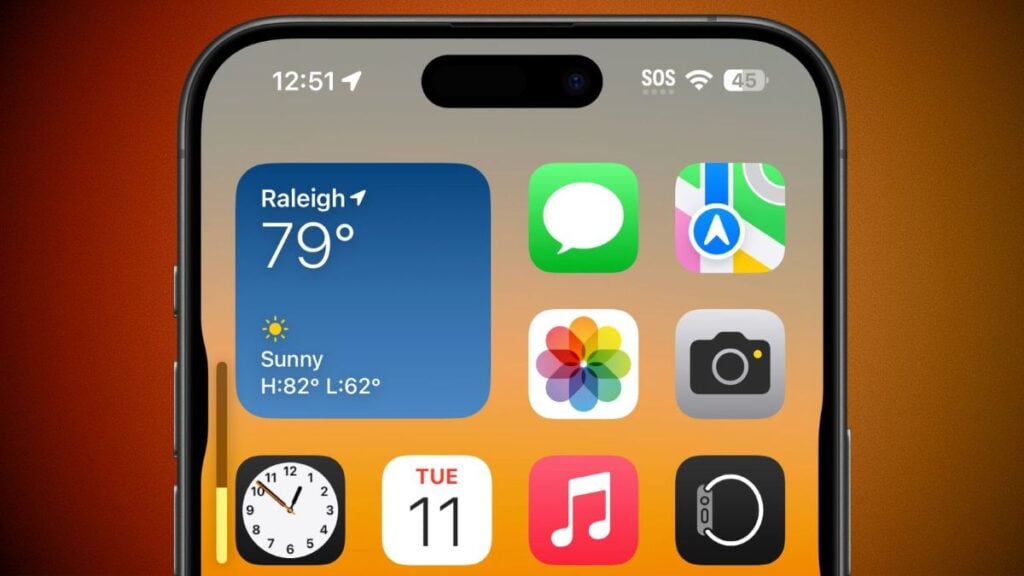
On the left side of your iPhone, you’ve got your two volume buttons stacked on top of each other—Volume Up is the higher one, Volume Down is right below it.
Then over on the right side (or the top, depending on your model), you’ve got the Side Button, which is the one you normally use to lock your phone or wake it up.
Once you’ve got that mental picture, all these shortcuts start feeling way more intuitive, since a lot of them involve combining the Side Button with one of the volume buttons.
So… Who Knew, Right?
Honestly, it’s kind of wild how much these two little buttons have been capable of this whole time while we’ve just been using them to turn Spotify down when someone walks in the room. Snapping photos, silencing calls, snoozing alarms, scanning documents, even reaching emergency help if you ever really needed it—it’s basically a mini control center sitting on the side of your phone that most of us never bothered to explore.
You don’t need to memorize this entire list right now. Just pick one or two that sound genuinely useful to you—maybe the silent call thing, maybe the instant photo trick—and try them out today. Once it clicks, it becomes second nature fast.
And hey, if you already knew about one of these (or better yet, know one we didn’t mention), drop it in the comments. We’re always down to learn another hidden iPhone trick.
Read Also: How to Take a Screenshot on iPhone Without Pressing the Side Buttons